
A player is a device configured to run Playengo when it is booted. It is connected to your screen via HDMI and is also connected to the internet. If you already have hardware installed, you must first configure your player in the Google Workspace administration console.
If you don't have hardware installed, you can simulate a player as described below.
Install and launch the Playengo app
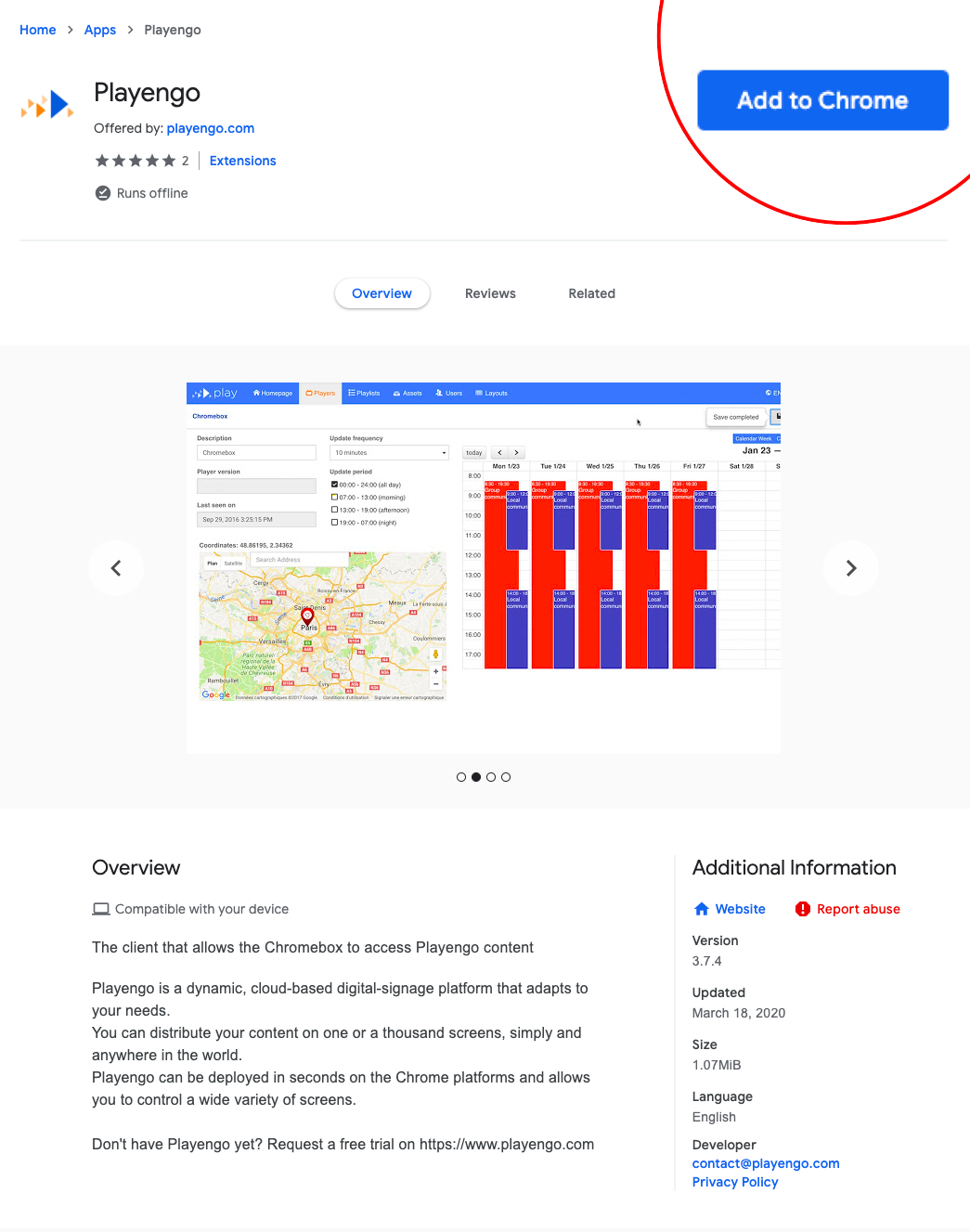
1. Go to the Playengo app in the Chrome web store.
2. Click Add to Chrome.
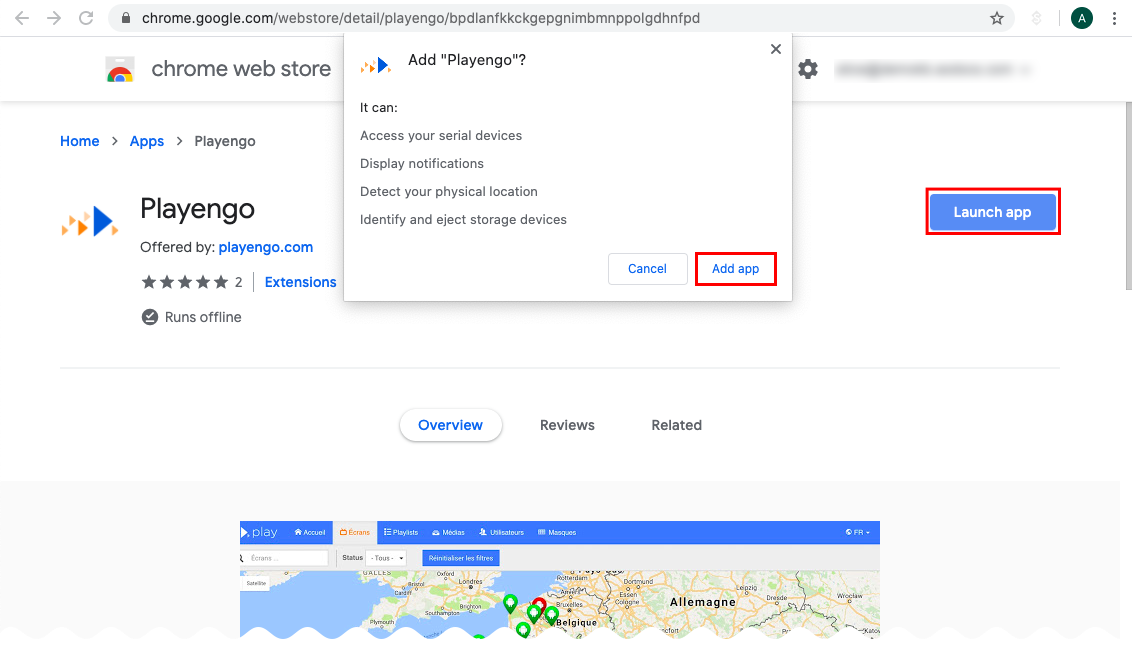
3. A message opens. Click Add app to confirm that you want to install Playengo.
4. Click Launch app once the app is installed.
Get the access code for your player
1. There are two possible situations:
- You launched the Playengo app on your device: go to step 2.
- You already have hardware installed: boot up your player then go to step 2.
Note: Your IT team will usually have set up your player so Playengo runs automatically when you boot up your player.
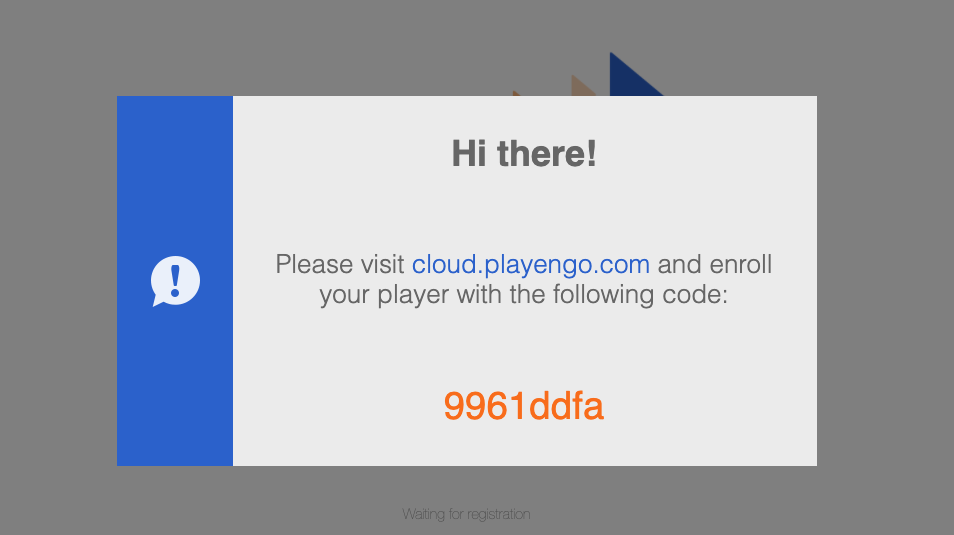
2. A unique code appears on your player. Take note of the code and use it to register your player in the Playenapp console.
Access the Playengo app again
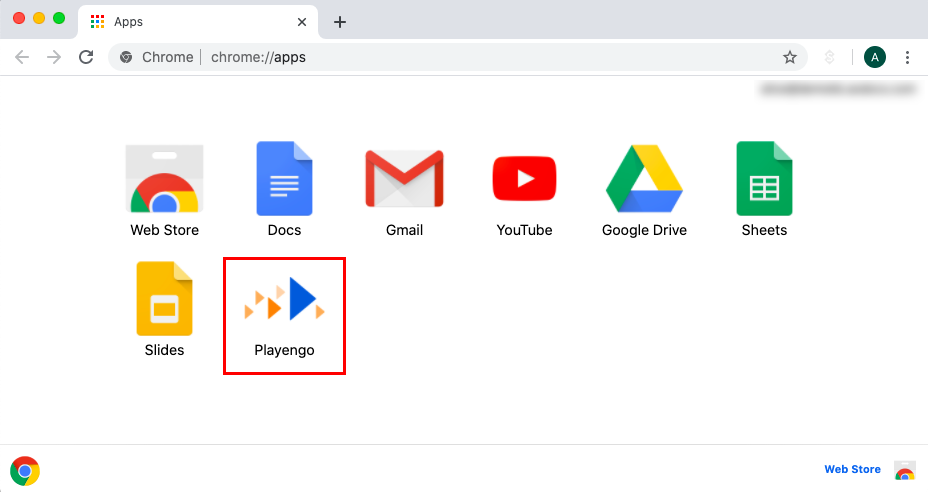
The next time you want to access the Playengo app enter chrome://apps/ in your browser to access your Chrome apps. Click Playengo.
In the next article, you will learn how register a player. You'll then be able to add online and offline content and create and deploy a playlist!
Comments
0 comments
Please sign in to leave a comment.