
2
After registering your player, you can add content (assets) to Playengo. Then organize your content into a playlist and deploy it on the player you registered.
There are two main types of asset you can add to Playengo:
- Offline assets: upload local content such as videos or images
- Online assets: add dynamic content providing real time data from:
- websites
- cloud documents
- widgets
Tip: If Playengo is already set up in your organization and you’re new to Playengo, start here to learn how to add new content.
Upload offline assets
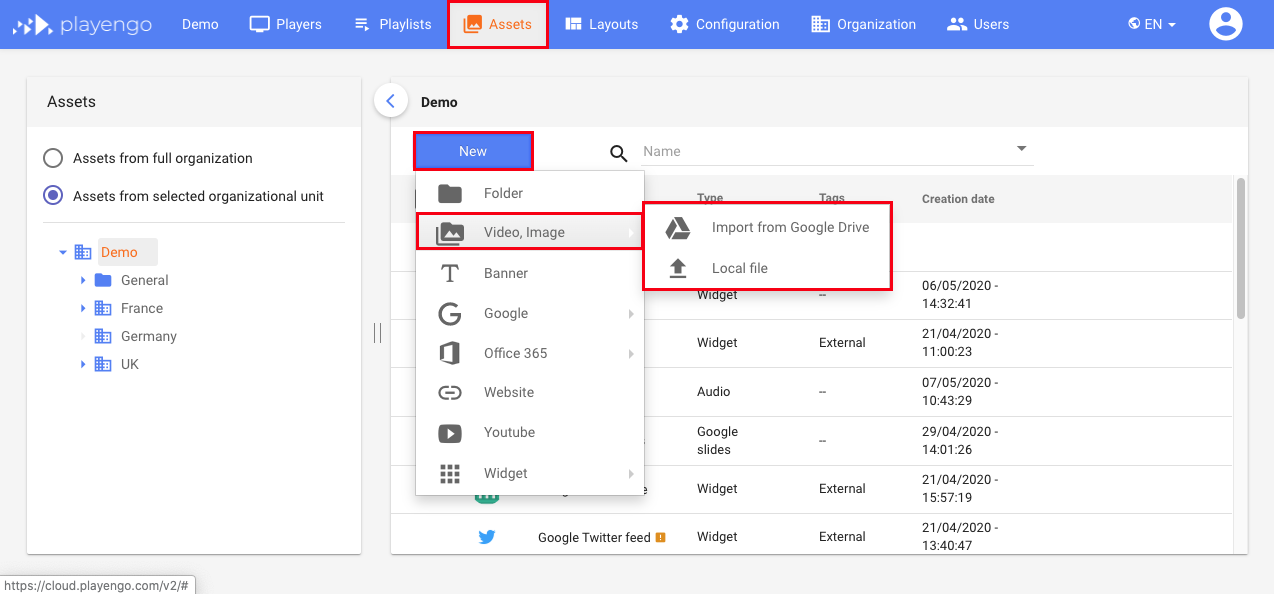
1. Select the Assets tab.
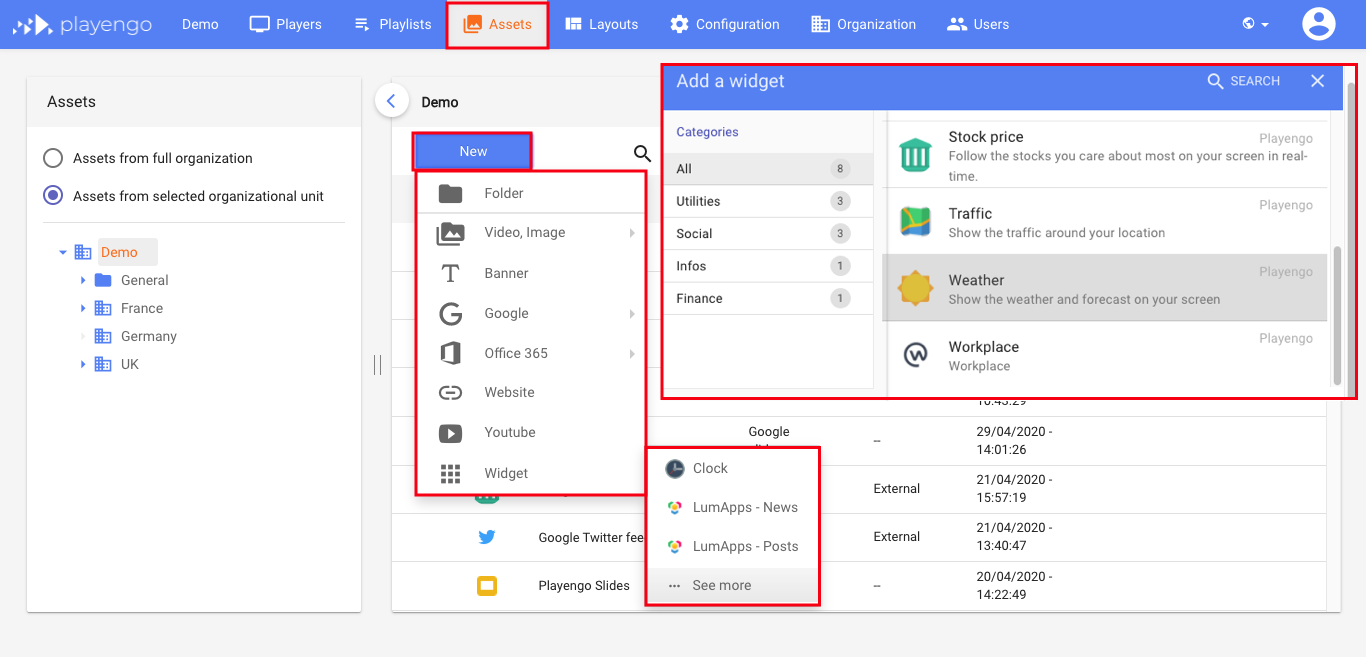
2. Click the New button, then select Video, Image. You can import from Google drive or select a local file from your device.
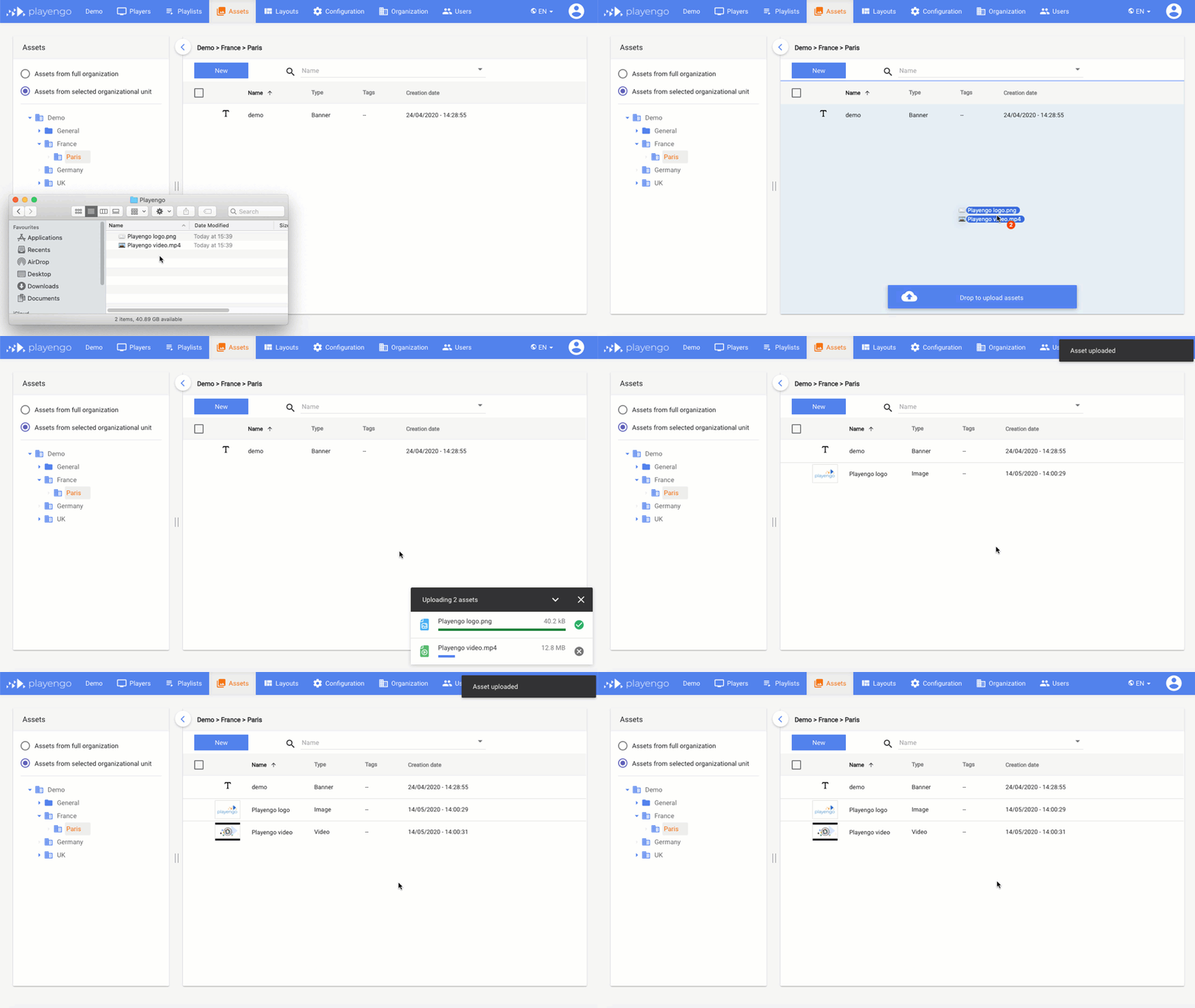
3. Select the required file from the file selector.
Tip: You can also directly drag and drop your files into the folder of your choice.
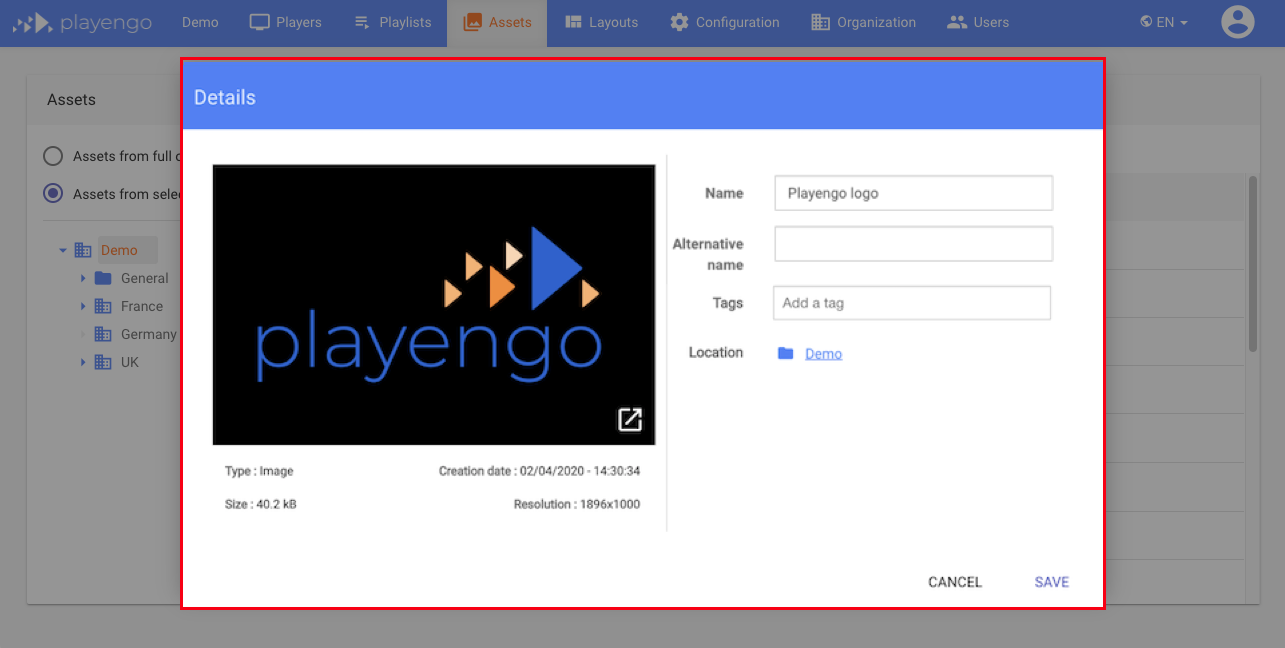
After uploading your content, it’s helpful to give it a memorable name, so you can easily find it again. Click the asset, enter a new name and click Save.
Add online assets
You can display dynamic web content like cloud documents, websites, dashboards, Twitter feeds, and much more.
Add a website
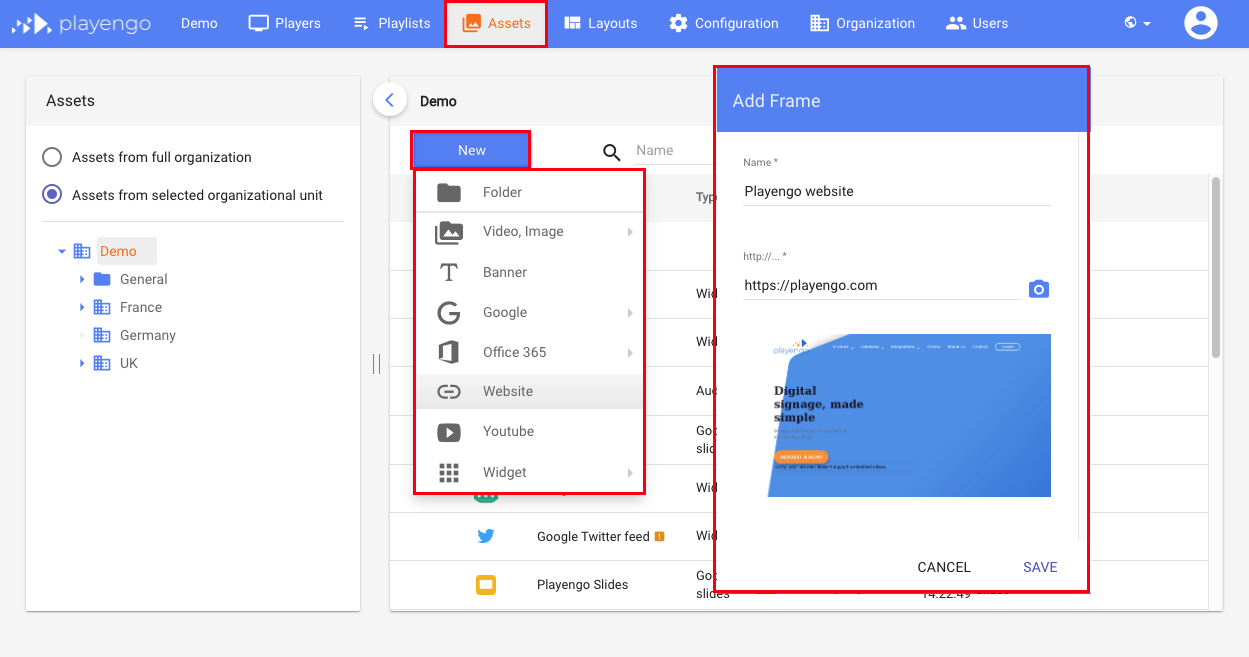
1. Select the Assets tab.
2. Click the New button, then select Website.
3. Enter the URL you want to show on your player. In this example, we entered the Playengo homepage.
Add a weather widget
Widgets let you retrieve data from various sources like weather, traffic, RSS feeds, Workplace posts, Lumapps news, and much more.
Learn more: [LINK TO SECTION ABOUT WIDGETS]
1. Select the Assets tab.
2. Click the New button, then select Widget.
3. If the widget you want is displayed, select it. If not, select See more. A dialog opens. Scroll down and select a widget. In this example, we selected the weather widget.
4. Name your widget, add a location and click Save.
You’ve added content to Playengo!
Comments
0 comments
Please sign in to leave a comment.