
You can organize your assets in folders. You can also give your assets tags to make searching for them easier.
You can then add your assets to playlists that are deployed to your players.
Manage folders for your assets
Create folders
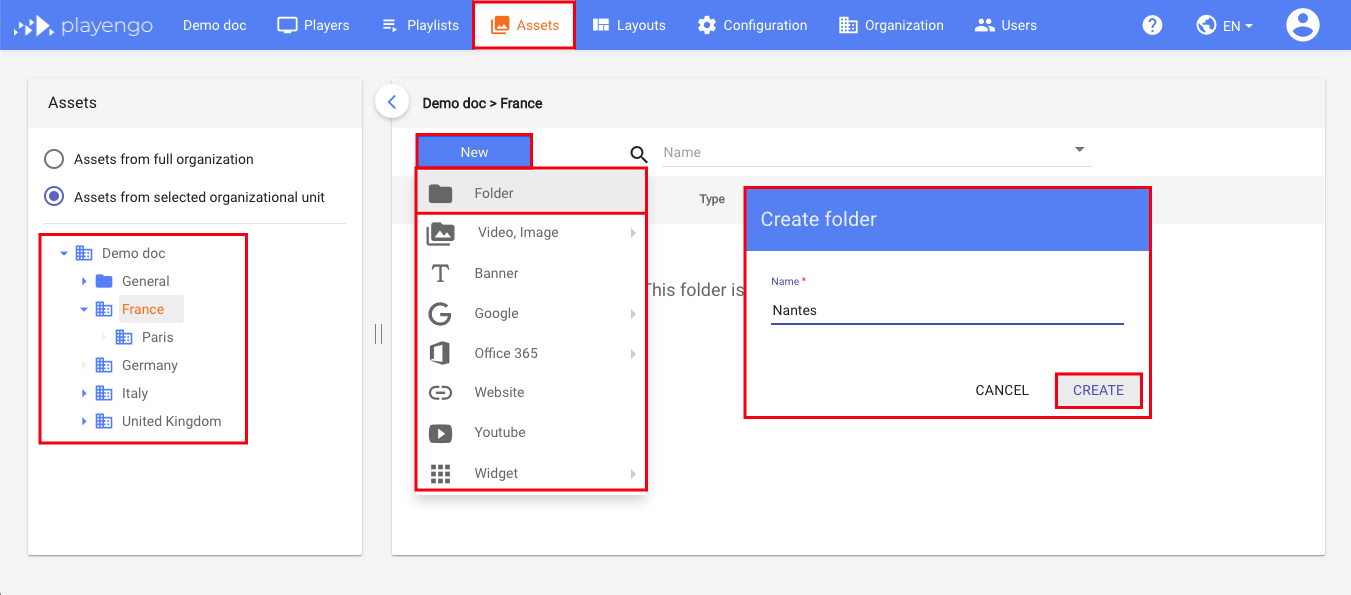
1. Open the Assets tab.
2. In the left panel, navigate to the position in the folder structure where you want to create a folder.
3. Click New then select Folder.
4. In Create folder dialog, enter a name for your folder.
5. Click Create.
Move assets into folders
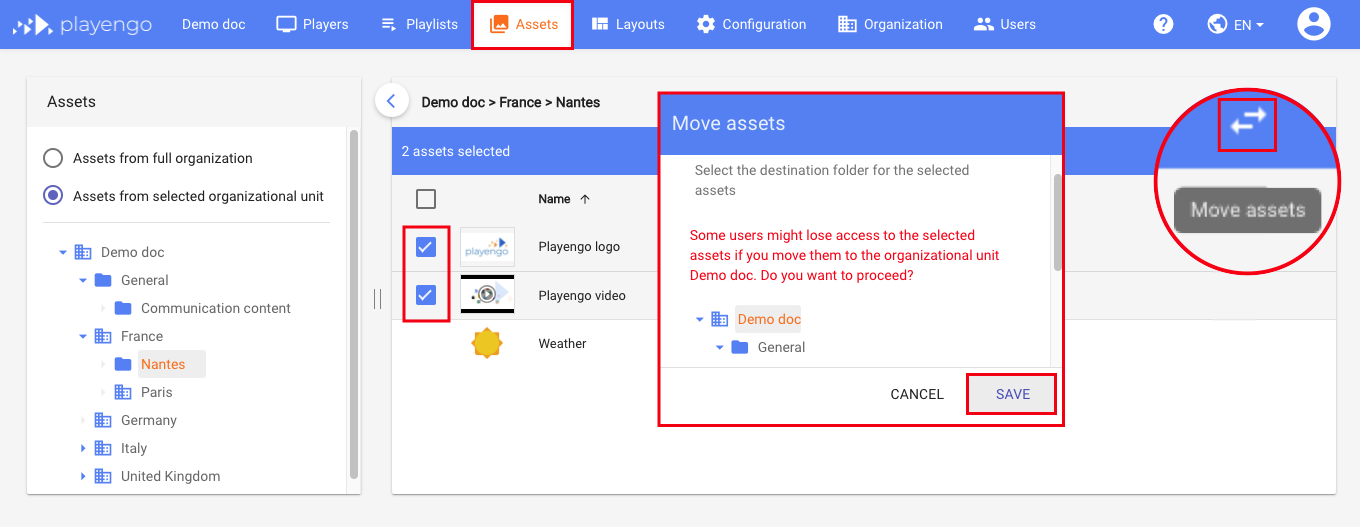
1. Select one or more assets.
2. Click the Move assets button.
3. In the Move assets dialog, choose the destination folder.
4. Click Save.
Rename folders
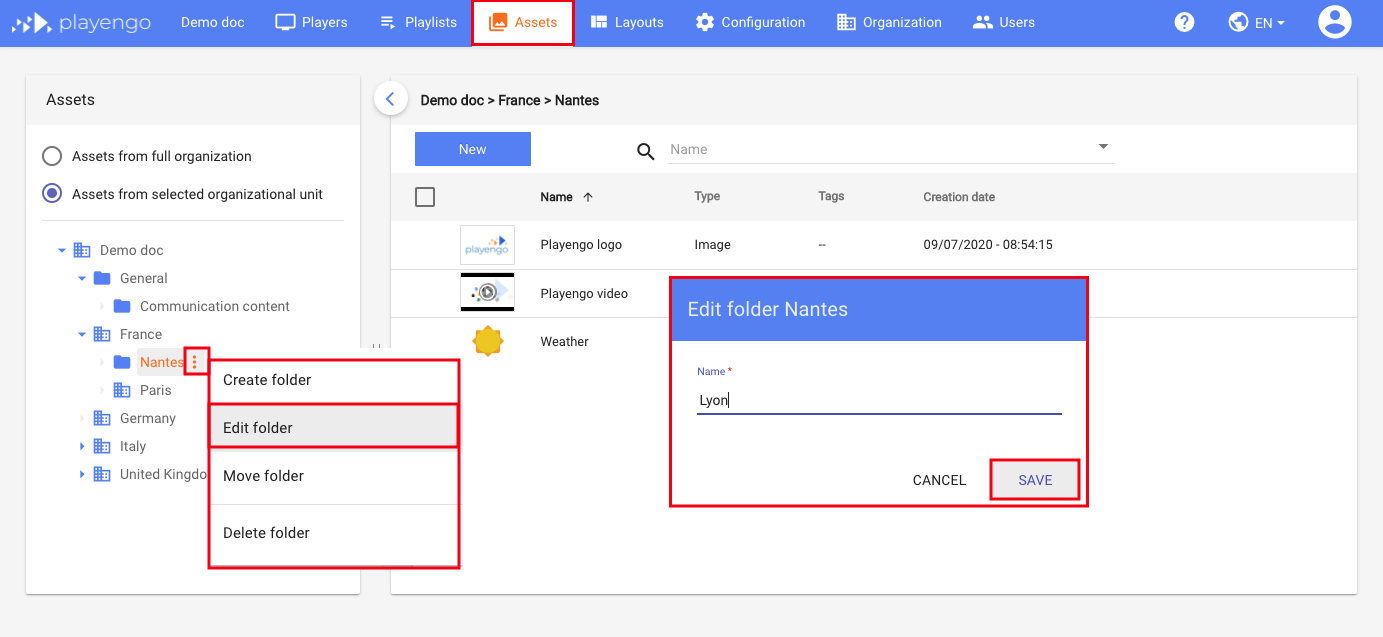
1. In the sidebar, open the More actions menu next to a folder and select Edit Folder.
2. In the Edit folder dialog, enter a new name for your folder.
3. Click Save.
Move folders
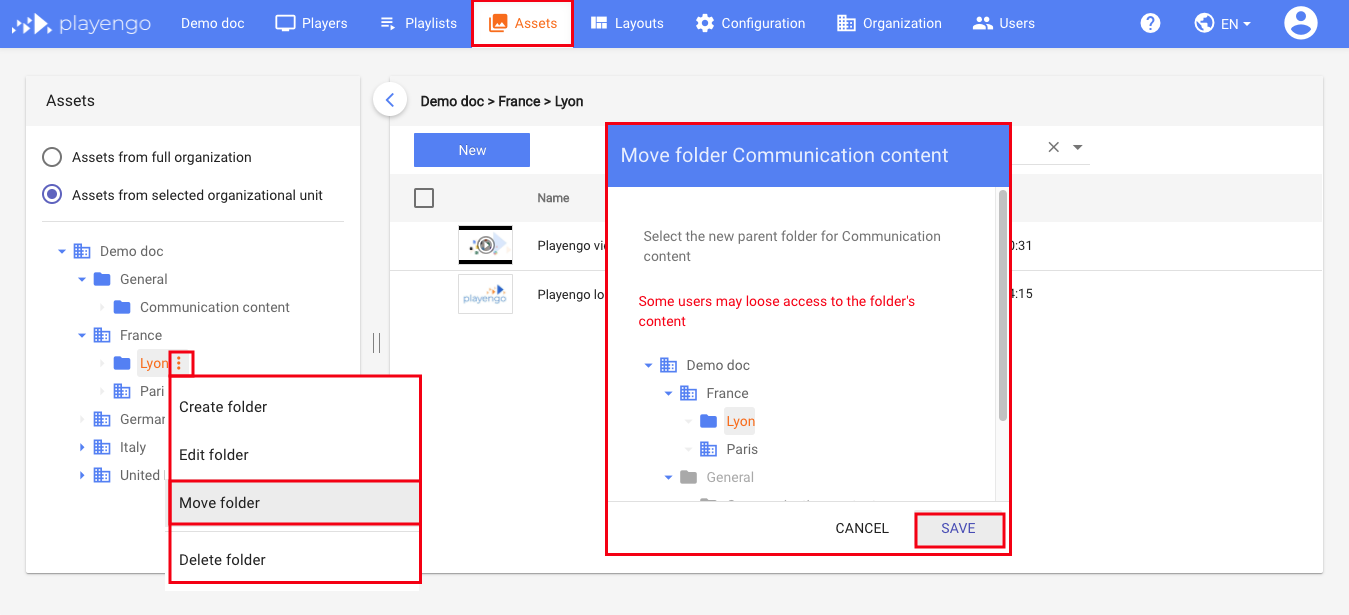
1. In the sidebar, open the More actions menu next to a folder and select Move Folder.
2. In the Move folder dialog, select a new parent folder for your selected folder.
3. Click Save.
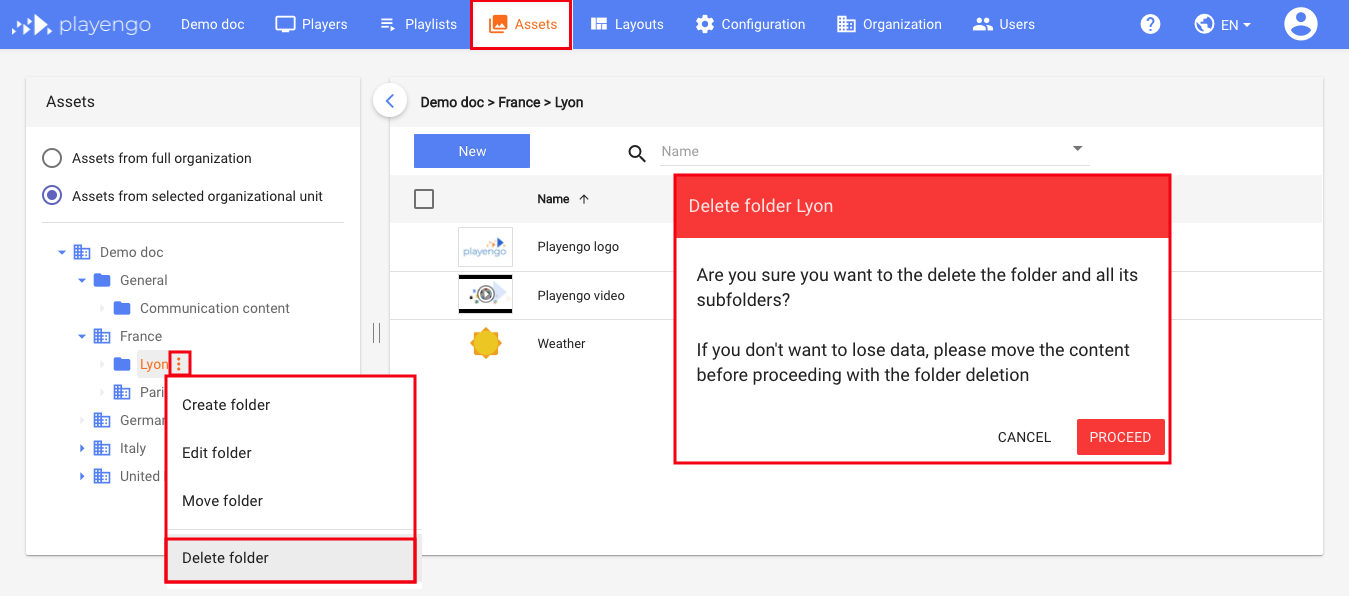
Delete folders
1. In the sidebar, open the More actions menu next to a folder and select Delete Folder.
2. Click Proceed in the confirmation message.
Tag and search your assets
Rename and tag assets
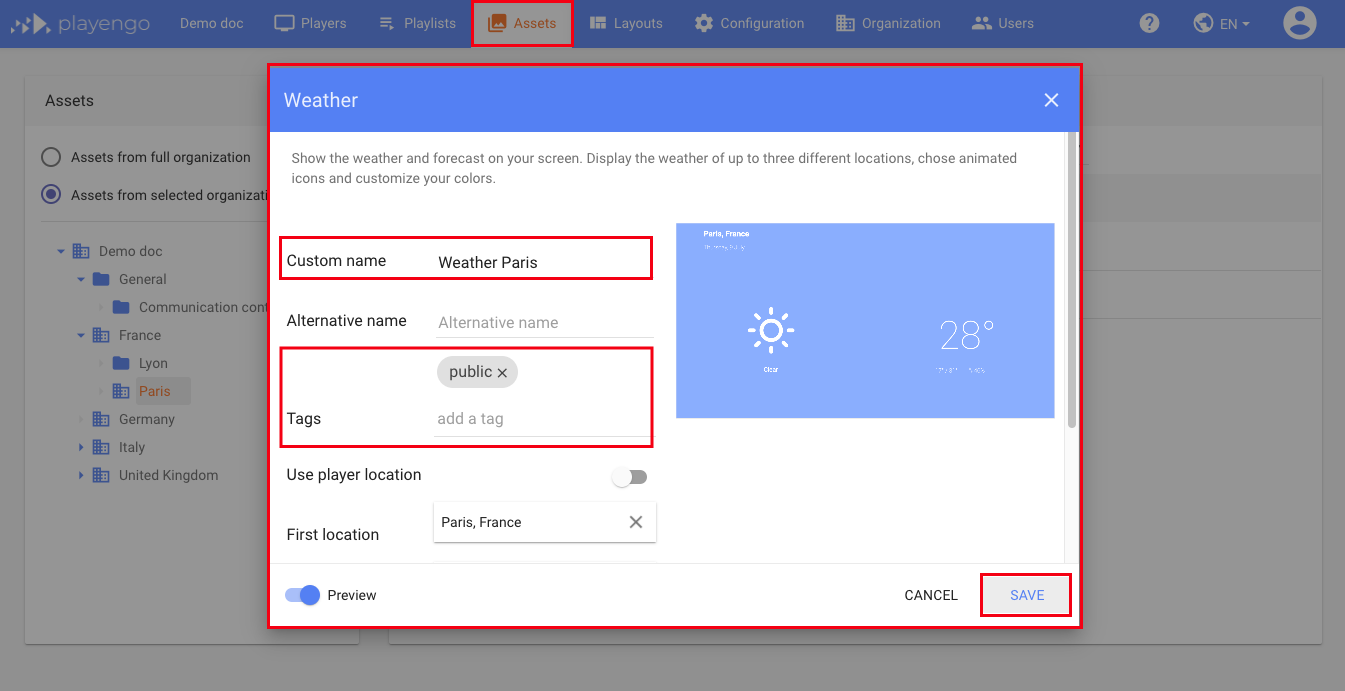
You can rename your assets and tag them to make them easy to find.
1. Click your asset. A configuration screen opens.
2. Edit the custom name and add a tag.
3. Click Save.
Search assets
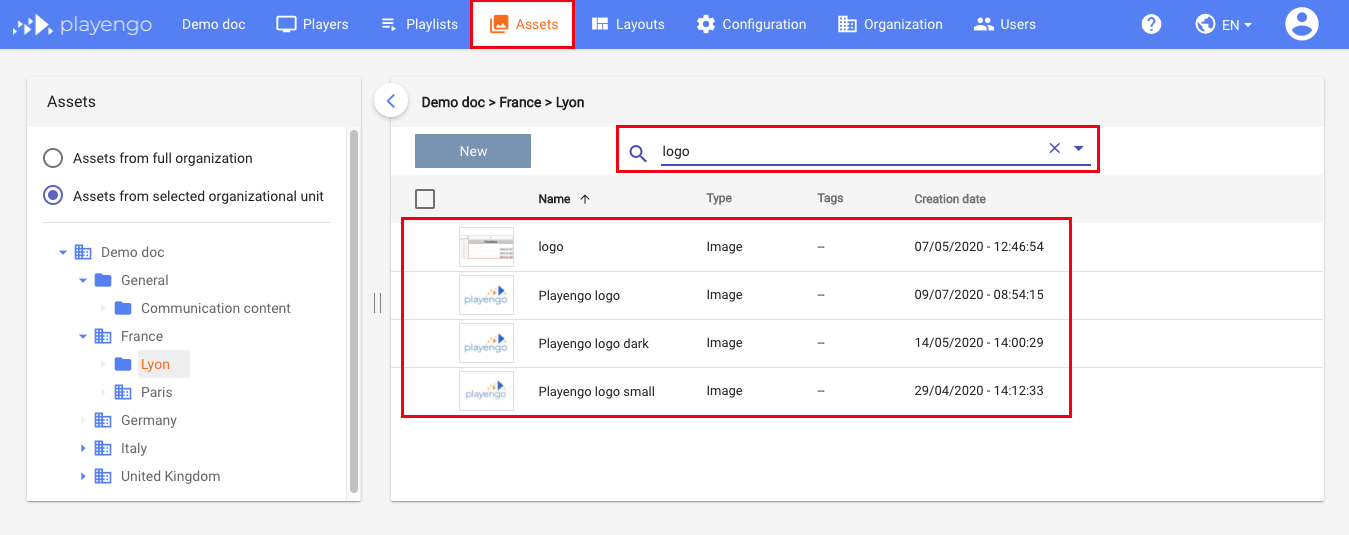
To run a search on the name of assets:
1. Enter a string in the search bar.
2. Press Enter.
The search results show all assets containing the string you entered, regardless of which level in the folder structure you have selected.
Advanced search
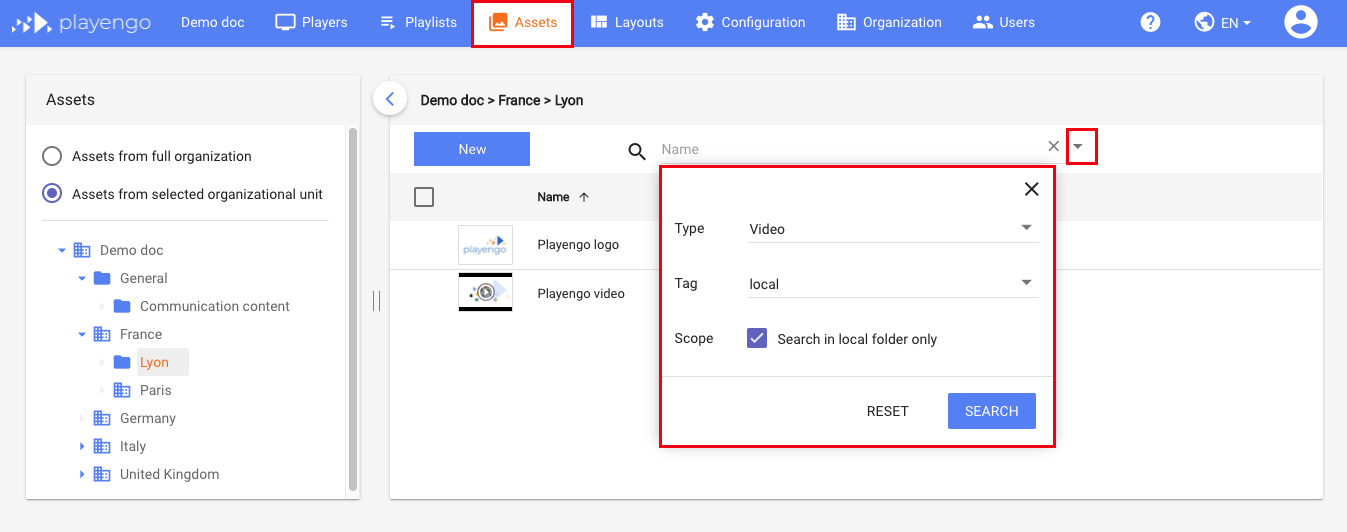
1. Click the arrow in the search bar.
2. Use the drop-down lists to search by type of asset and/or tag.
3. Select the checkbox to run the search in the current folder.
4. Click Search.
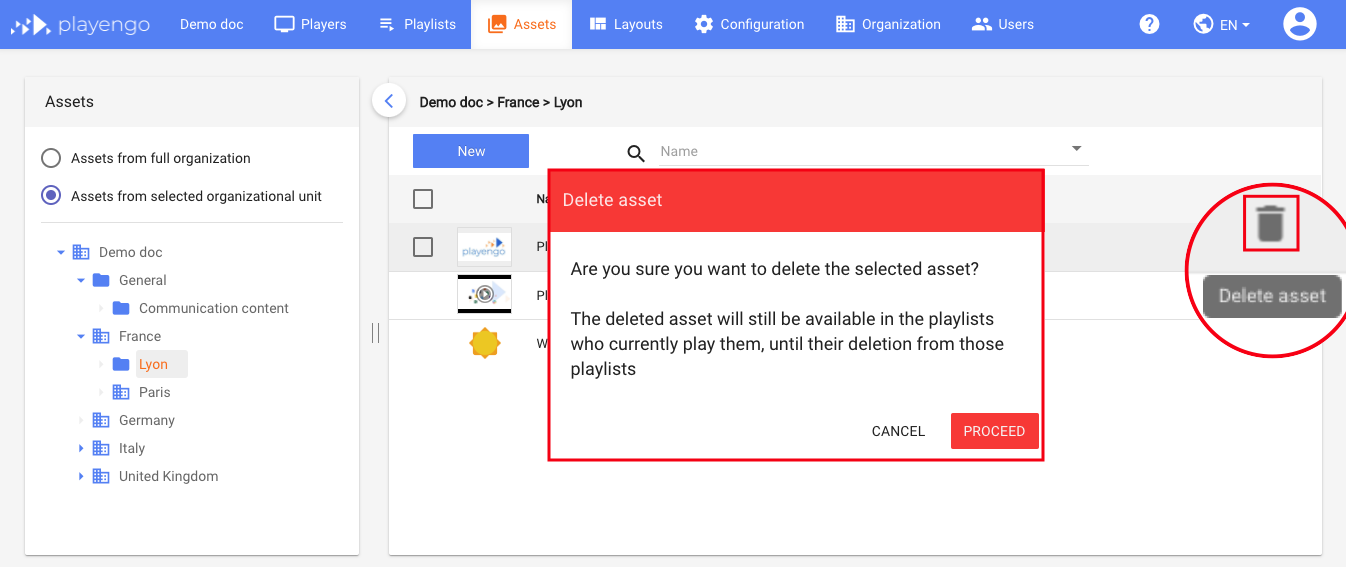
Delete assets
1. Hover over an asset and click the trash icon.
2. Click Proceed in the confirmation message.
Comments
0 comments
Please sign in to leave a comment.