
This widget lets your display your LumApps news on your Playengo players.
There are two steps:
- In LumApps, add a tag to your LumApps news.
- Create your LumApps – News asset in Playengo.
Playengo recovers the title, the vignette and the first 200 characters of the introduction of the tagged news stories and displays them on your player.
Configure a tag in LumApps
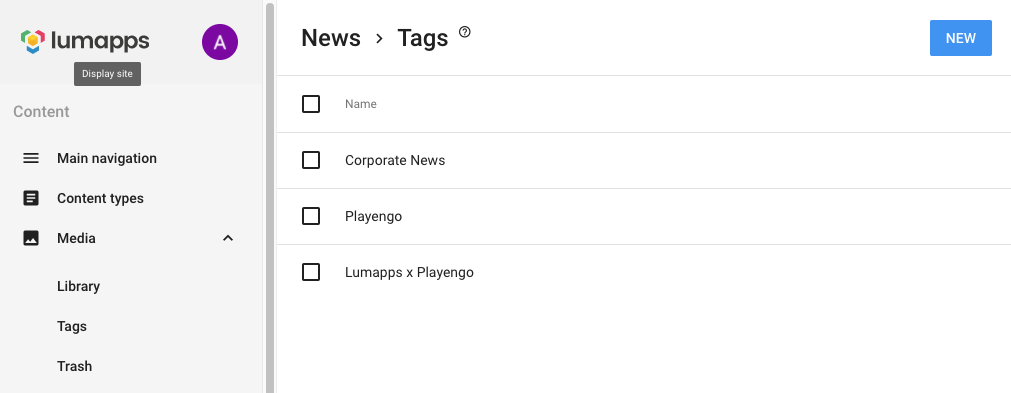
1. Create a tag for the news you want to display. In this example, the tag is called Playengo.
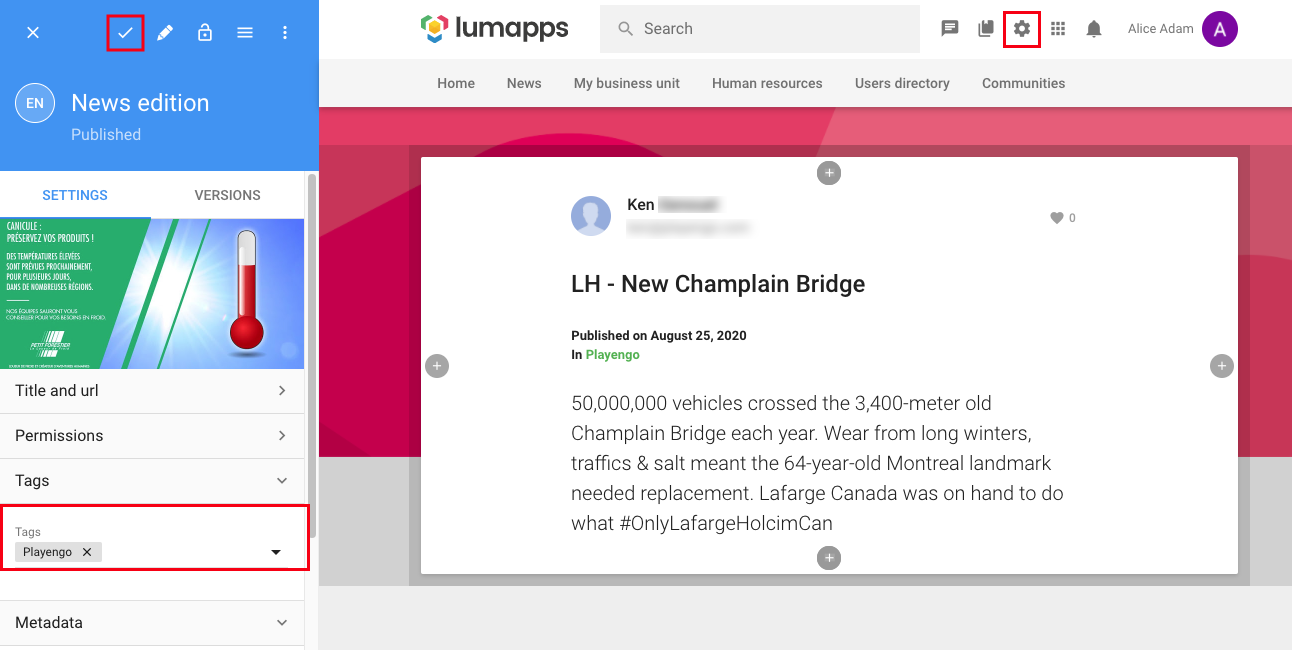
2. Assign this tag to the news you want to display on your players.
Create your asset in Playengo
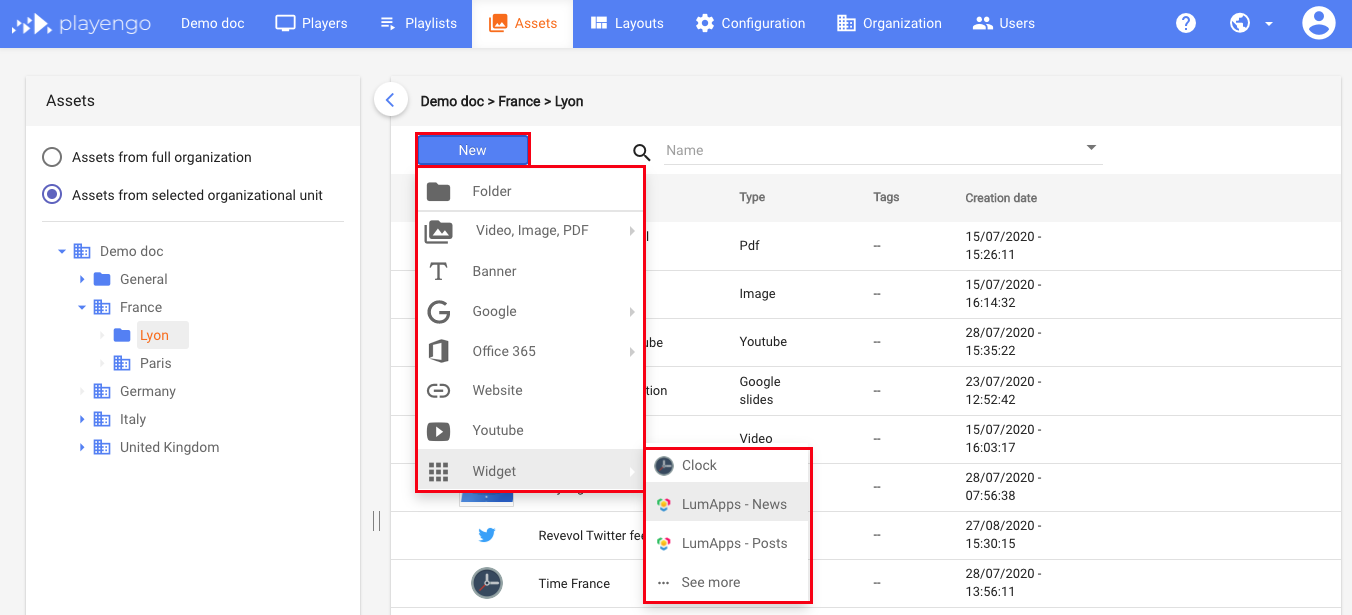
1. Open the Assets tab and select the required folder in the left panel.
2. Click New and select Widget > Lumapps — news in the menu.
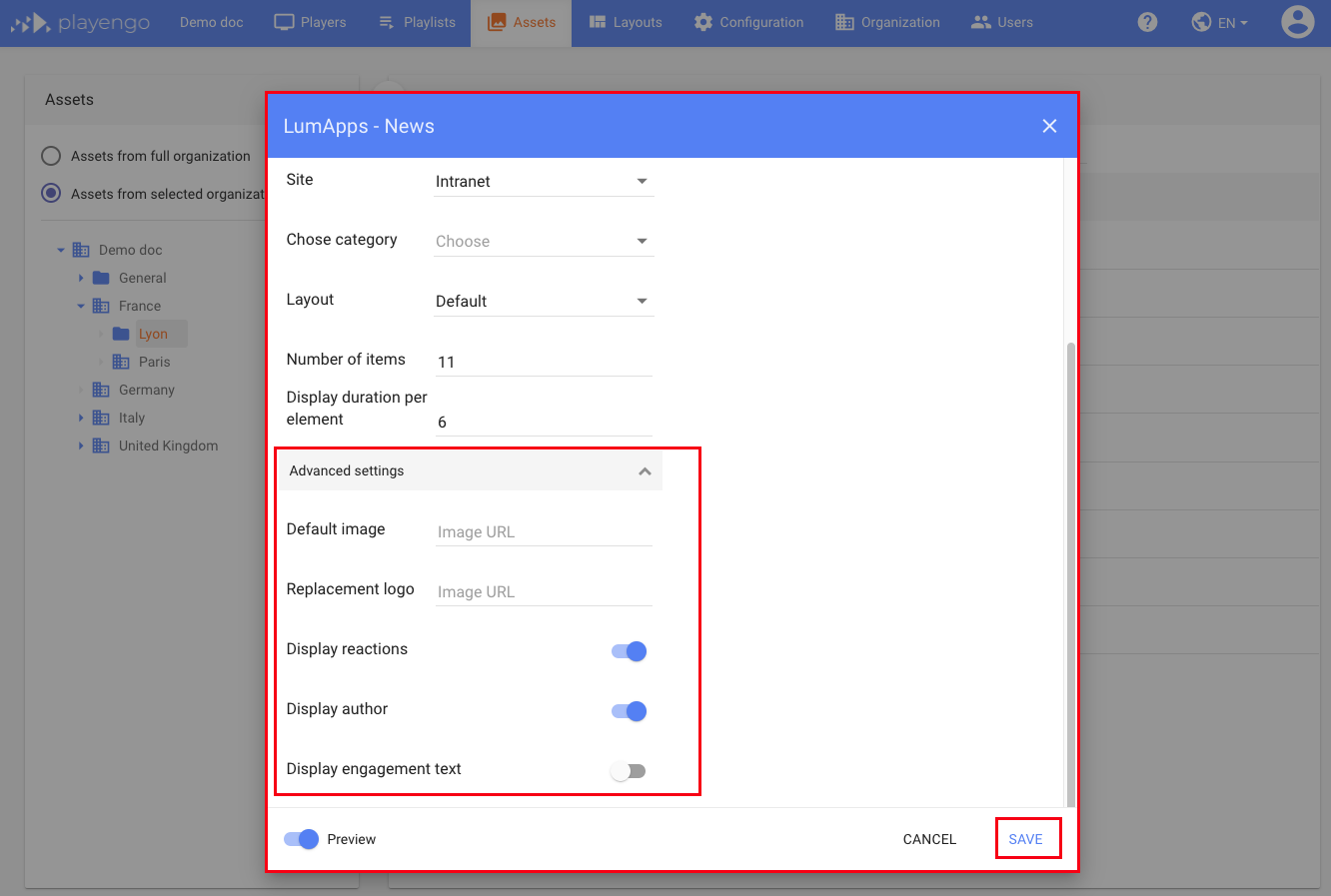
3. In the LumApps – News dialog:
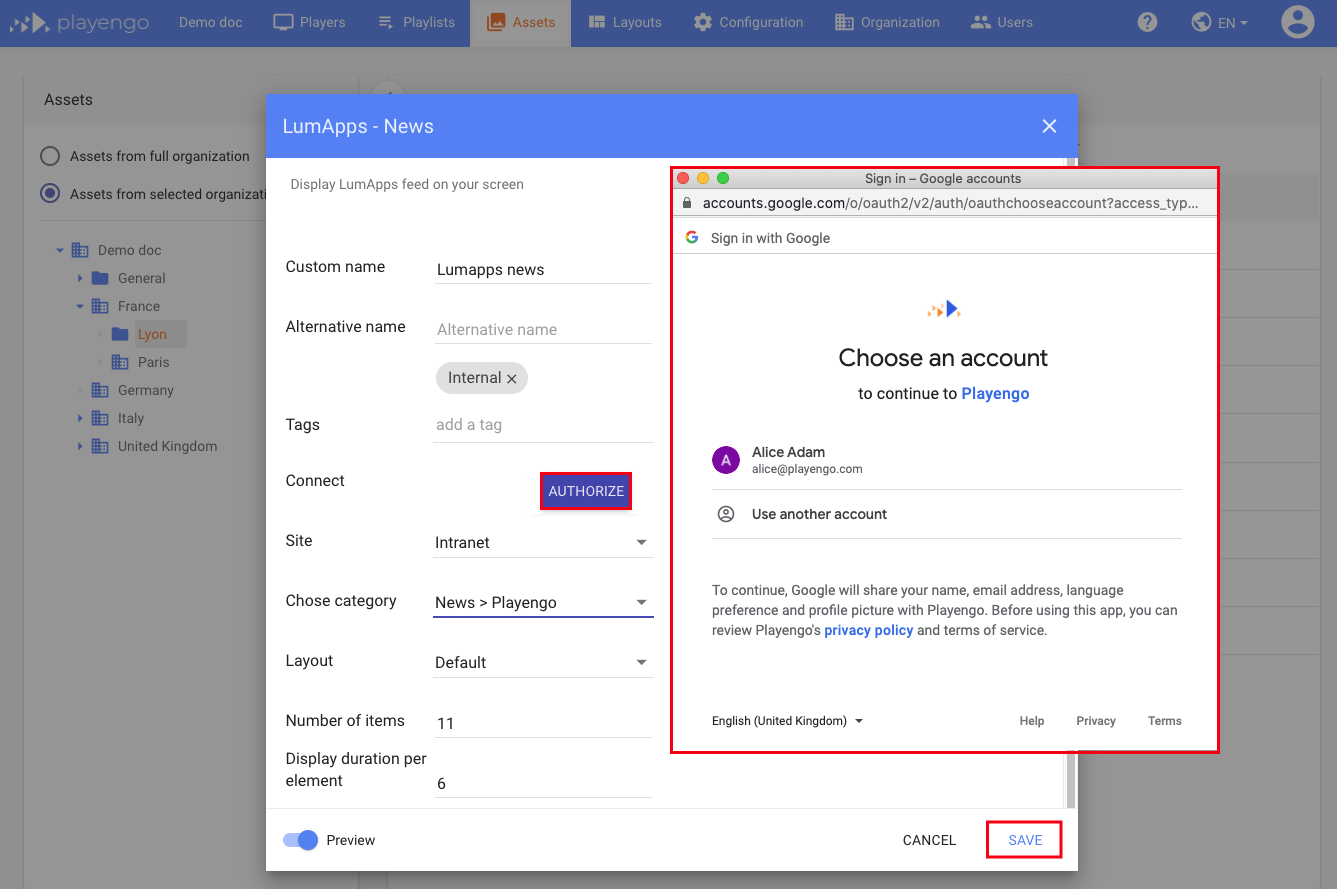
- enter a name for your LumApps asset
- click Authorize and sign in to your LumApps account
- select the site and the required category (tag) you want to display
You can also:
- enter a tag for your asset
- define the layout, the number of items and the display duration of each item
4. In the advanced settings, you can:
- select a default image – this is used for posts that don't have images
- customize the widget with a logo from your intranet
- exclude reactions to the news
- choose whether to display the author's name and avatar
- select Display engagement text to display the following text at the bottom of the news items:
Read the full article on your intranet under the [title] section
5. Click Save.
Comments
0 comments
Please sign in to leave a comment.