
You can upload offline content such as videos, images, audio files and PDF files to the Playengo console. You can then add them to playlists and display them on your players.
Note: Offline content continues to be displayed on your players in the event of a network outage.
You can upload the following file types:
- image files: JPEG, PNG, GIF
- video files: MP4, WEBM
- audio files: MP3
You can upload local files using the Playengo console or by drag and drop. You an also upload files directly from Google Drive.
If you modify a file that has been uploaded to the Playengo console, you must upload it again to use the latest version.
Select local files to upload
1. Open the Assets tab and select the required folder in the left panel.
2. Select New > Video Image, PDF > Local file.
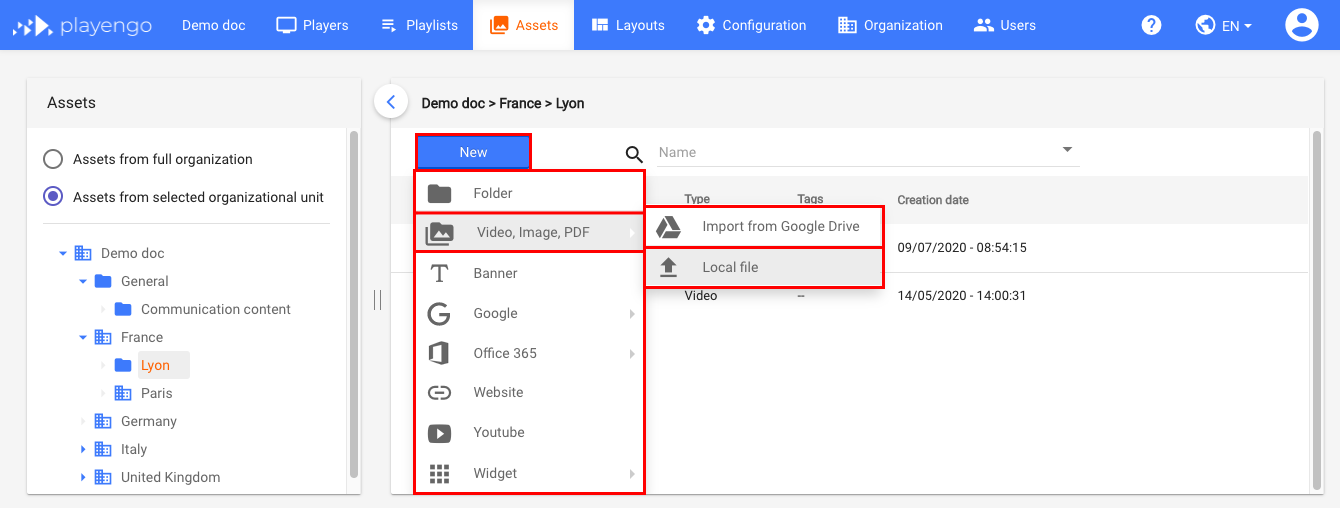
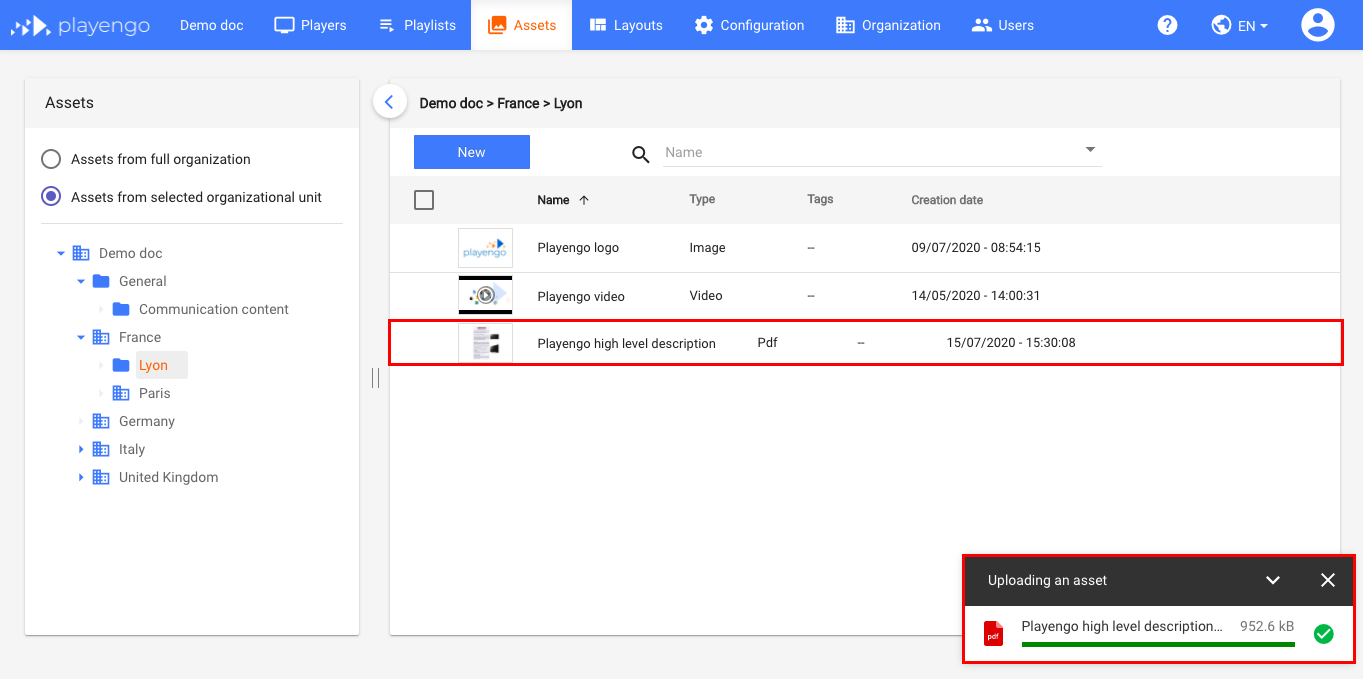
3. Select the required local file in your finder and click Open. A copy of your file is uploaded to Playengo.
Drag and drop local files
1. Open the Assets tab and select the required folder in the left panel.
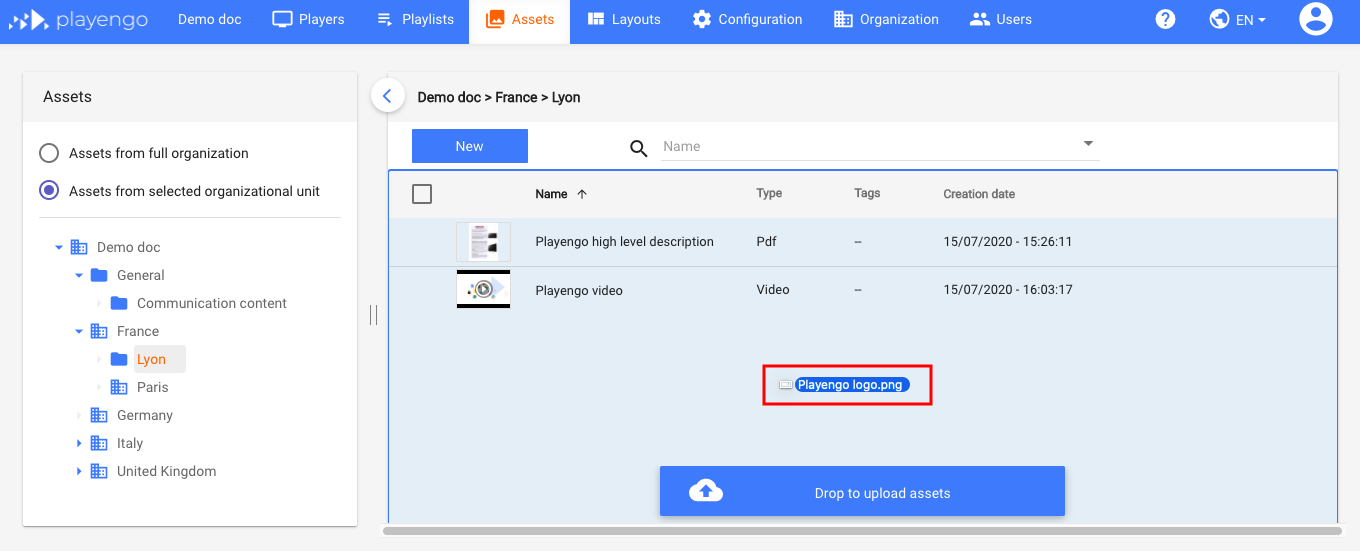
2. Drag and drop a file directly from your finder into the Playengo console. A copy of your file is uploaded to Playengo.
Upload files from Google Drive
1. Open the Assets tab and select the required folder in the left panel.
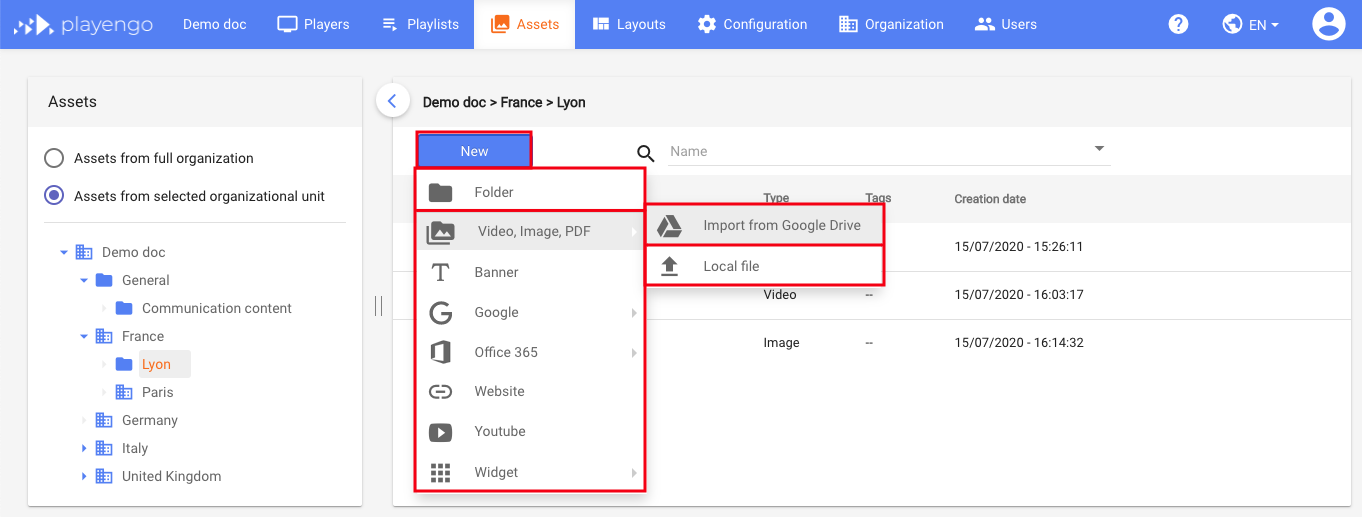
2. Select New > Import From Drive.
3. Select a file from your Google Drive picker and click Select.
Note: If it's the first time you're importing a file from Drive, you need to grant Playengo the right to connect to Google Drive.
A copy of your file is uploaded to Playengo.
Comments
0 comments
Please sign in to leave a comment.