
You can display content from Google files directly on your Playengo players. You can use Google documents, Google presentations and Google spreadsheets.
When you add Google files to Playengo, the content from the files is displayed on your players. Any updates you make to your Google files are immediately displayed on your Players. Learn more about how to avoid displaying your work in progress when editing your Google files: Handle draft content.
Your Google files remain in Google Drive with their share permissions defined. This means that people who don't have access to Playengo can edit the Google files and the content is updated immediately on the players.
Share your Google files
Before adding Google files to Playengo, you must share your files so Playengo can access them.
Share your Google files using one of these methods:
- Share your Google file with Anyone with the link and define your audience as Viewers.
- Many companies don't allow sharing with Anyone with the link. In this case, you can share your files with a generic account called share@playengo.com. When you add your file to Playengo, activate Enable private access.
Notes:
– If there are restrictions on your domain, you may have to whitelist the generic account. See your administrator.
– If for security reasons you can't share with share@playengo.com contact our support team by email at support@playengo.com.
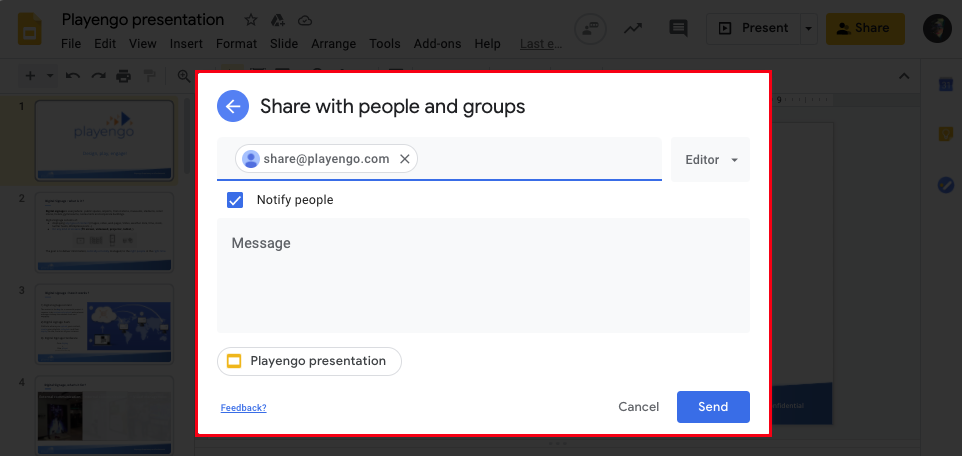
Add your Google files to Playengo
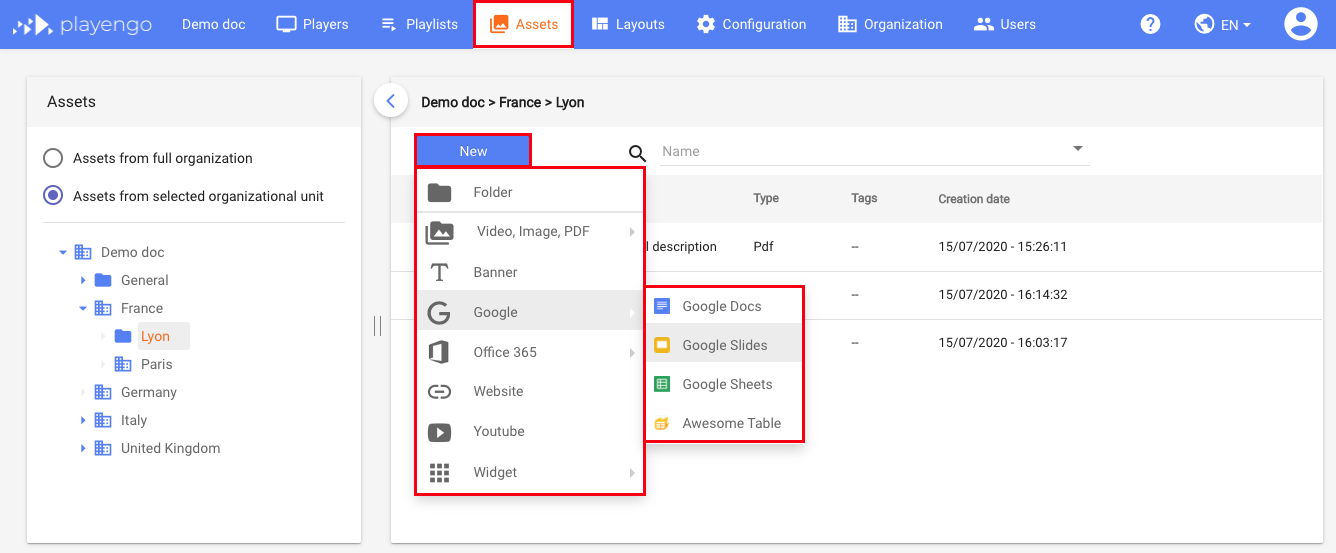
1. Open the Assets tab and select the required folder in the left panel.
2. Click New and select Google in the menu, then select the type of Google file.
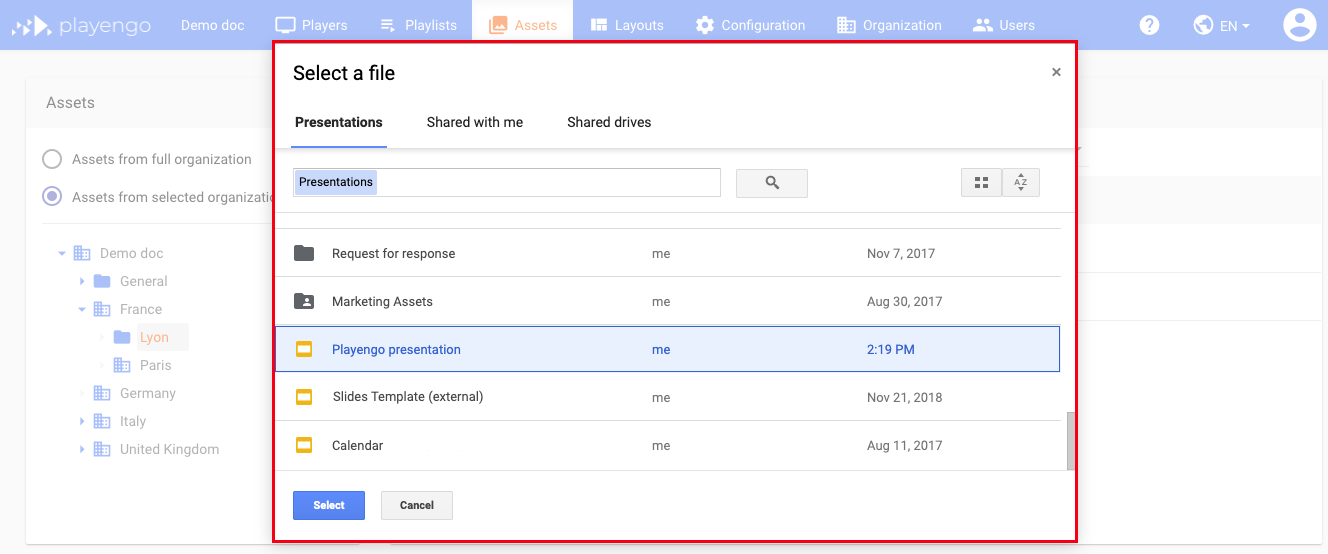
3. In the Google picker, select a Google file. You can select a file from My Drive, Shared with me, or a shared drive.
Note: The first time you access the picker, you must grant Playengo permissions to access Google Drive.
4. Click Select.
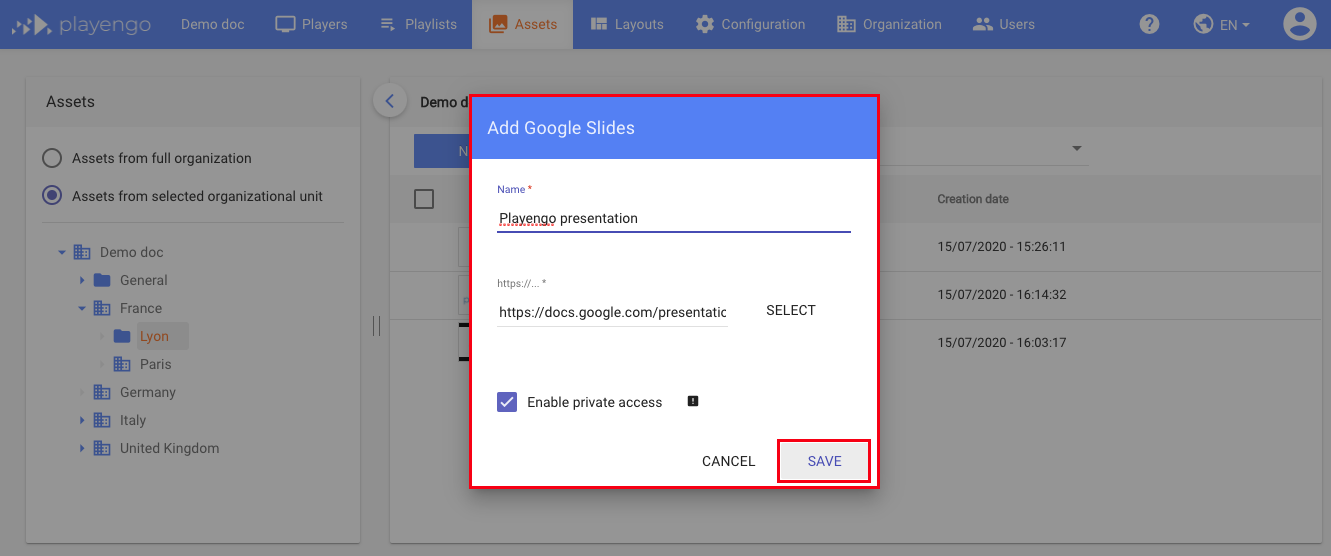
A popup opens indicating the name of the file you selected and its URL.
5. If you shared your file using the generic account share@playengo.com, select Enable private access to allow Playengo to access the file. Learn more: Share your Google files.
Note: Skip this step if you shared your file with Anyone with the link.
6. Click Save.
Your Google file is now displayed on your players.
Preview your Google files in Playengo
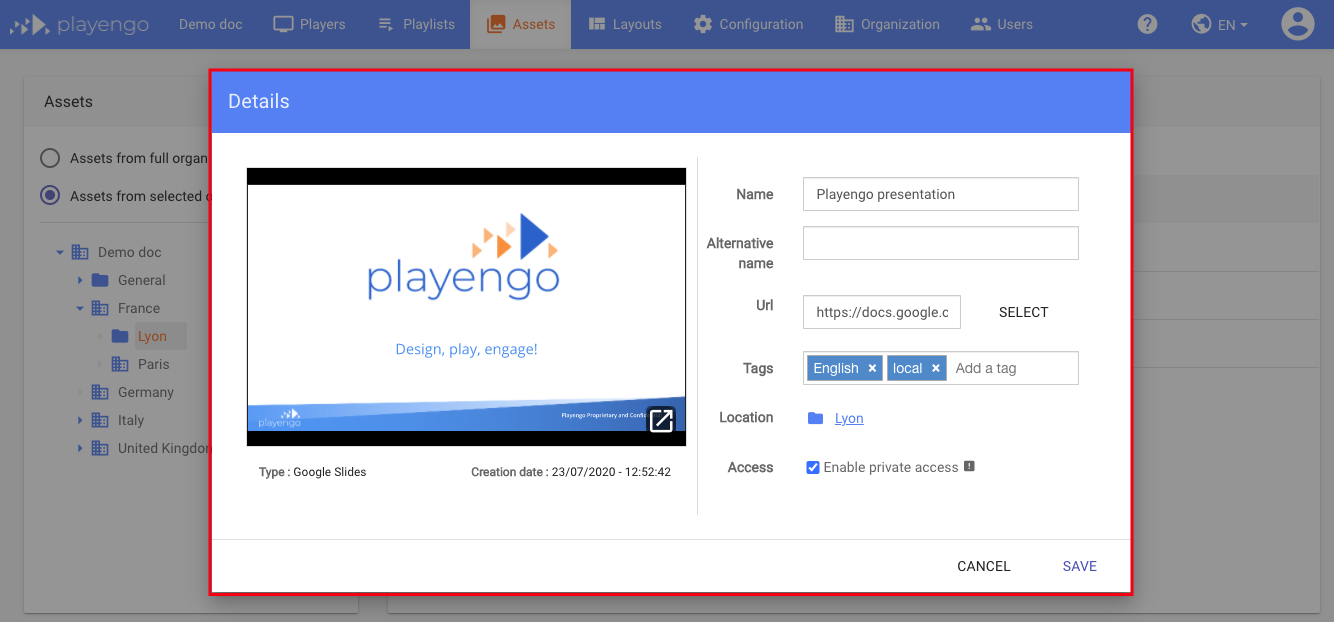
Click the Google file you added to your list of assets. The Details dialog opens.
If required, you can:
- view the display of your Google file in a new tab
- add a tag – learn more: Tag and search your assets
- enable or disable private access – learn more: Add your Google files to Playengo
Tips on working in Google files for Playengo
Handle draft content
Take care when updating Google files that you added to Playengo. Any changes you make are immediately displayed on your players, so we recommend using one of the following methods to handle work in progress:
- Make a copy of the Google file for work in progress, then copy over the content to the file linked to Playengo when the content is ready.
- In Google Slides, hide the slides you're working on, then unhide them when the content is ready.
Link charts, tables or slides to Google Docs or Slides
You can link charts, tables or slides to Google Docs or Slides so content in your Google file or presentation is updated automatically. Learn more from the Google Help Center: Link a chart, table, or slides to Google Docs or Slides.
Handle display options in Google Slides
In Google Slides, any transitions and animations you use in your presentation are included in the display on your players.
Take account of the following tips:
- For animations on slides, the duration counter starts once the animation is finished.
- You can't configure different durations for different slides. However, you can duplicate slides to make it appear that a slide is displayed for longer. For example, if you've set the display duration to 5 seconds, but you want one slide to display for 10 seconds, duplicate the slide you want to display for 10 seconds. It will display twice for 5 seconds.
- Don't make animations on slides start On click as the slide display won't progress.
Comments
0 comments
Please sign in to leave a comment.