
Create banners
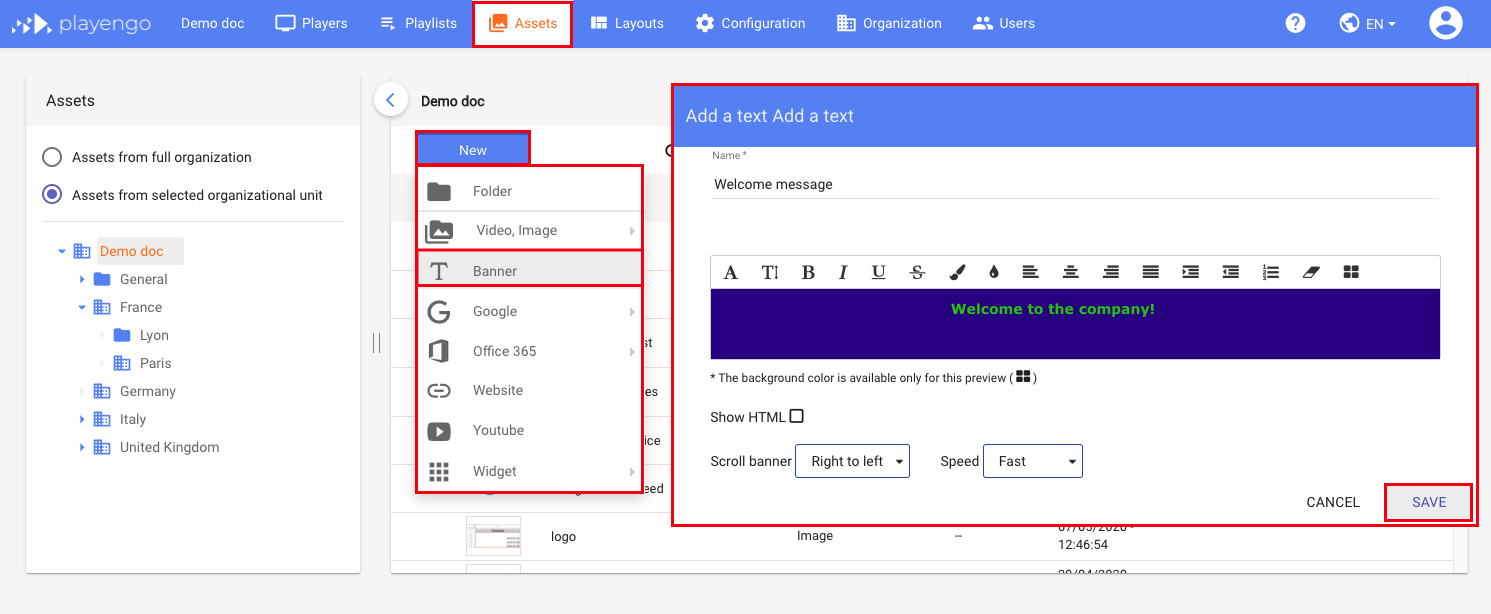
1. Open the Assets tab and select the required folder in the left panel.
2. Click New and select Banner in the menu.
3. In the dialog:
- enter a name for your banner
- enter the text that will appear on the banner
- customize the format of your text
Note: The background color of banners is always transparent. When you import your banner into a playlist, it takes the background color of the selected layout. However, in this dialog, you can select the background color (of the layout in your playlist, for example) to test the colors of the text and the background.
4. If required, you can make the banner scroll across the screen: choose the direction and the speed.
Tip: Text that scrolls from right to left is much easier to read!
5. Click Save.
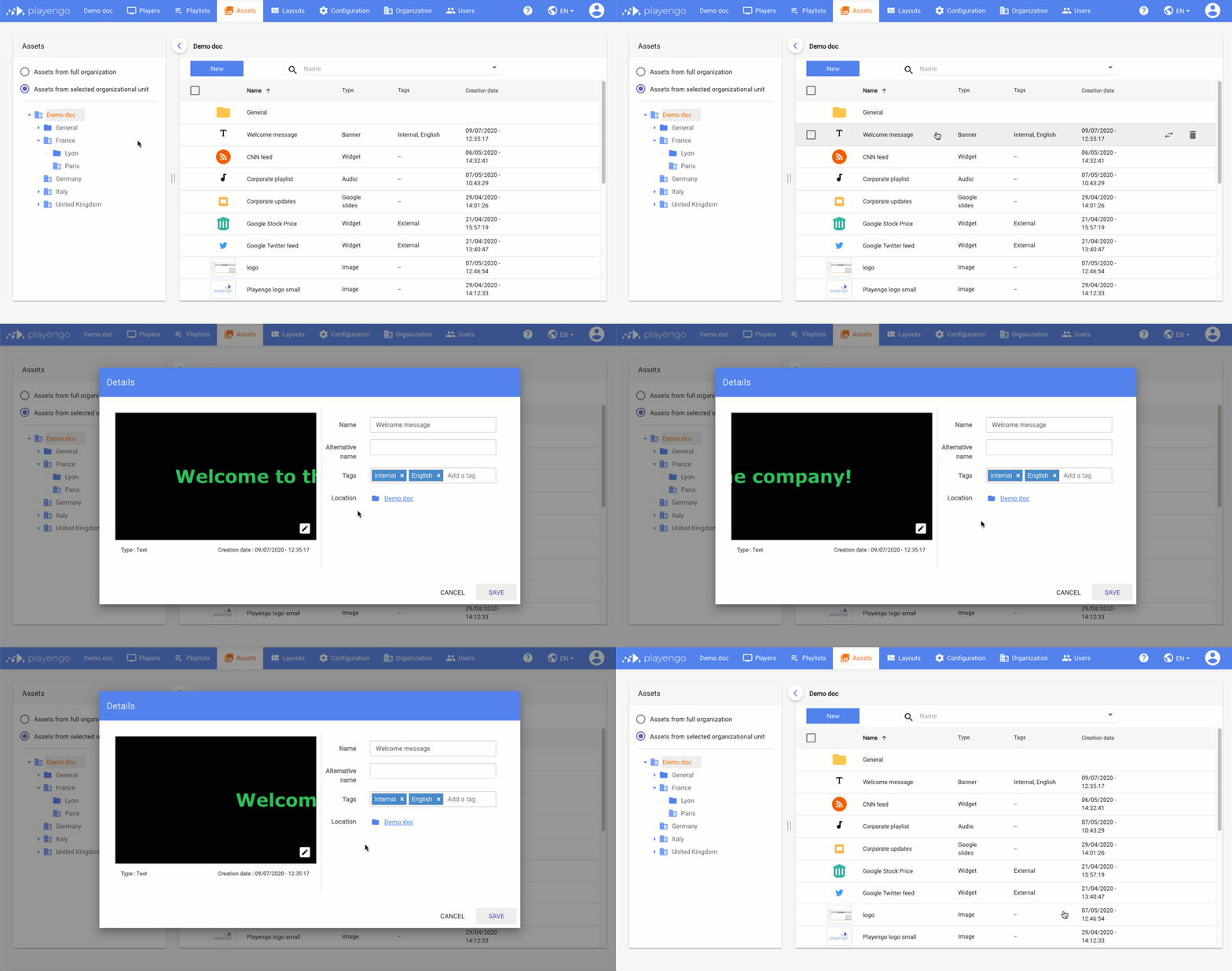
6. To preview the banner, click on it once in the Assets tab.
Edit banners
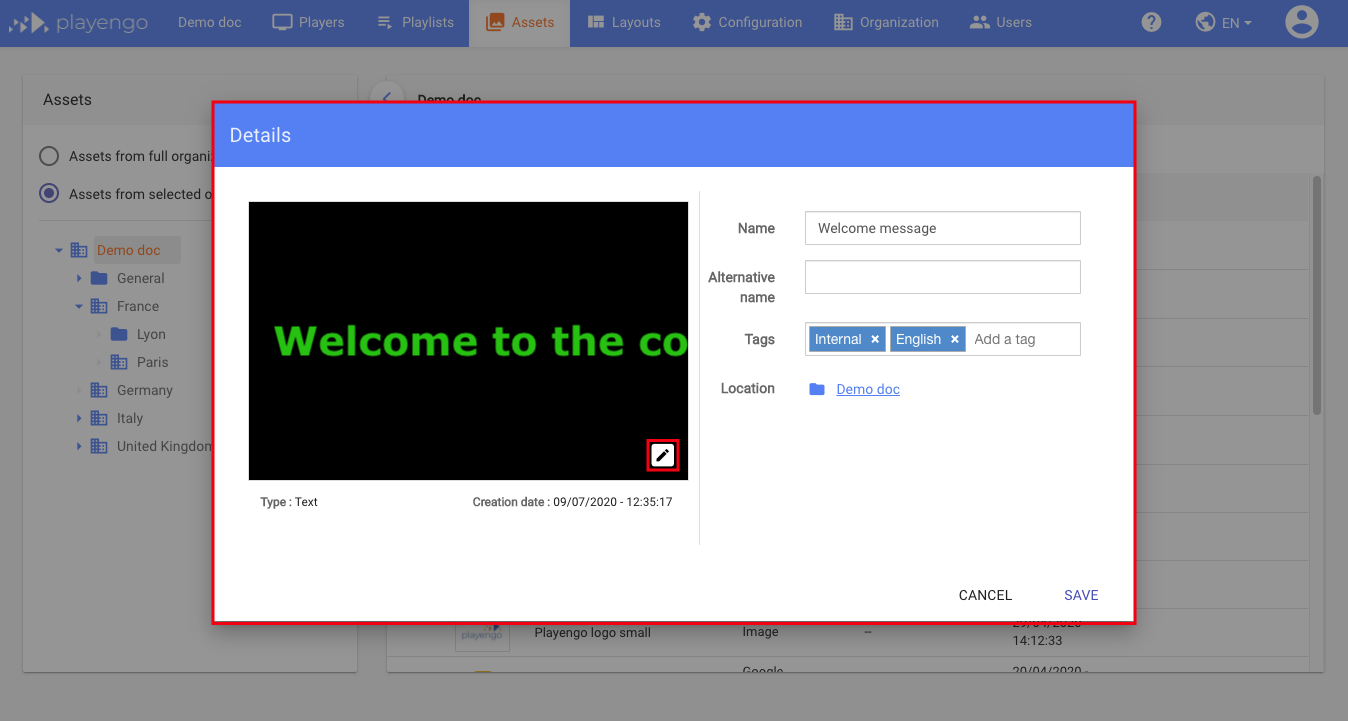
1. Click the banner you added to your list of assets.
2. In the Details dialog, change the name of the banner or add tags and press Save.
3. For more settings, click the pencil icon.
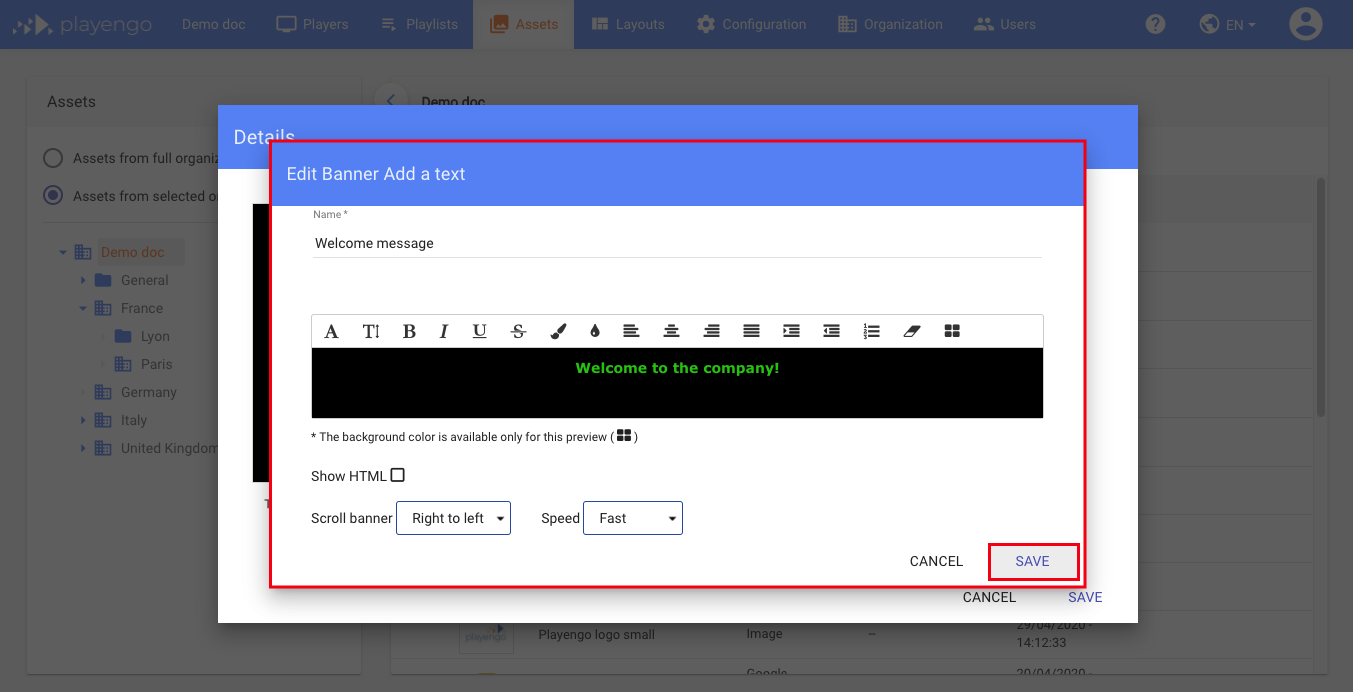
4. Make any required changes. Learn more: Create banners.
5. Click Save.
Note: If you edit a banner that has already been added to a playlist, your changes are automatically updated on the players. There's no need to reimport your banner into your playlist.
Comments
0 comments
Please sign in to leave a comment.