
2
You can add Traffic widgets as assets.
Note: Your administrator must generate an API key and share it with you. You can then enter the API key when you configure your Traffic widget.
Add Traffic widgets as assets
1. Open the Assets tab and select the required folder in the left panel.
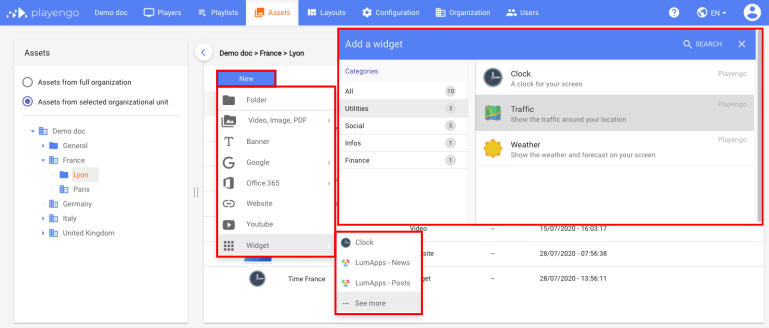
2. Click New and select Widget > See more in the menu.
3. In the Add a widget dialog, scroll down, select Utilities or do a search. Select the Traffic widget.
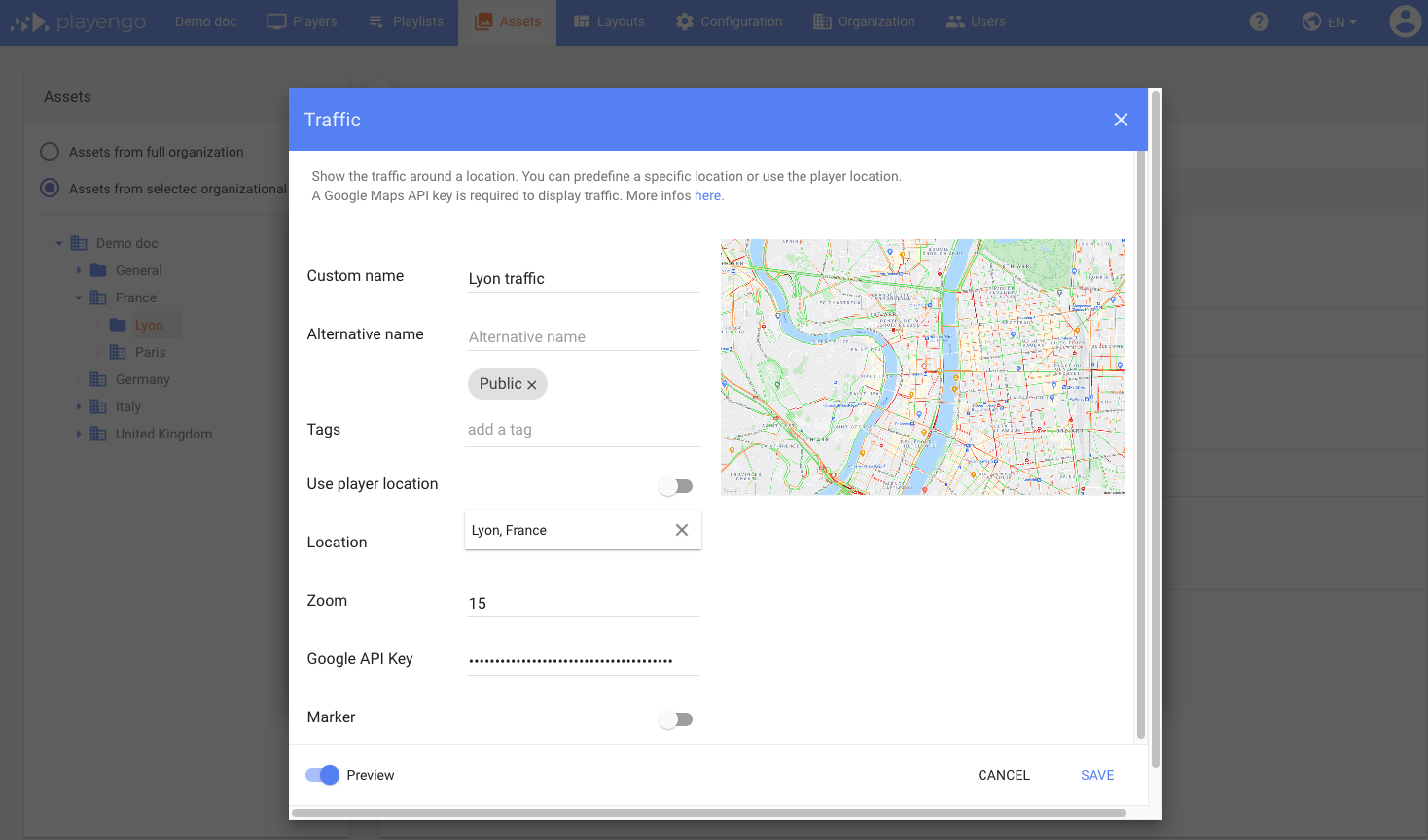
4. In the Traffic dialog:
- give your Traffic widget a name
- if required, add a tag
- choose to use the player’s location or select a different location
- if required, adjust the zoom on the map
- add the API key provided by your administrator for your map
- if required, define a marker on your map and a URL
5. Press Save.
Generate an API key: for administrators
Activate the Maps Javascript API and generate an API key
1. Go to https://console.cloud.google.com/apis
2. Sign in using a Google account (if you're not already signed in).
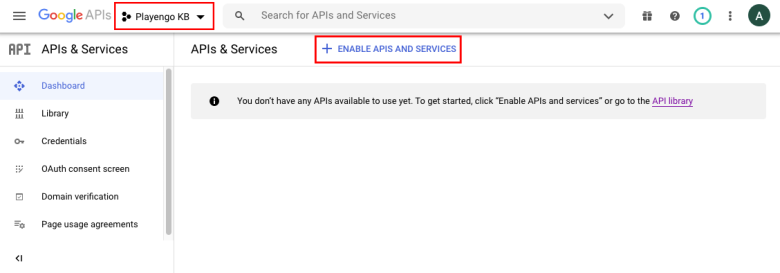
3. Open a project (or create a new one), then click Enable APIs and Services.
4. Enter "maps javascript" in the search field.
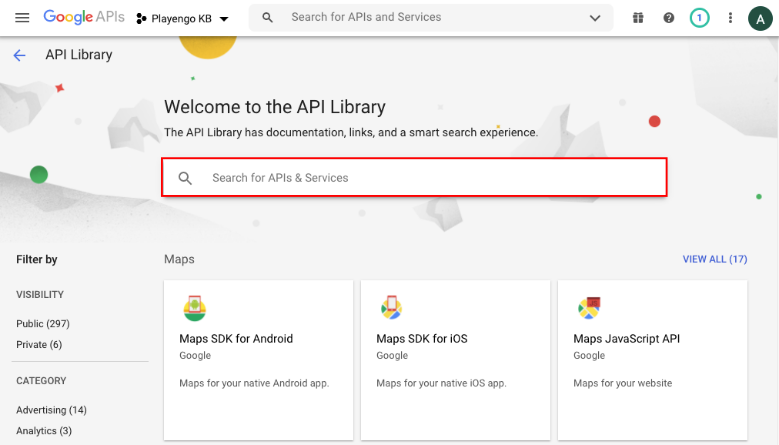
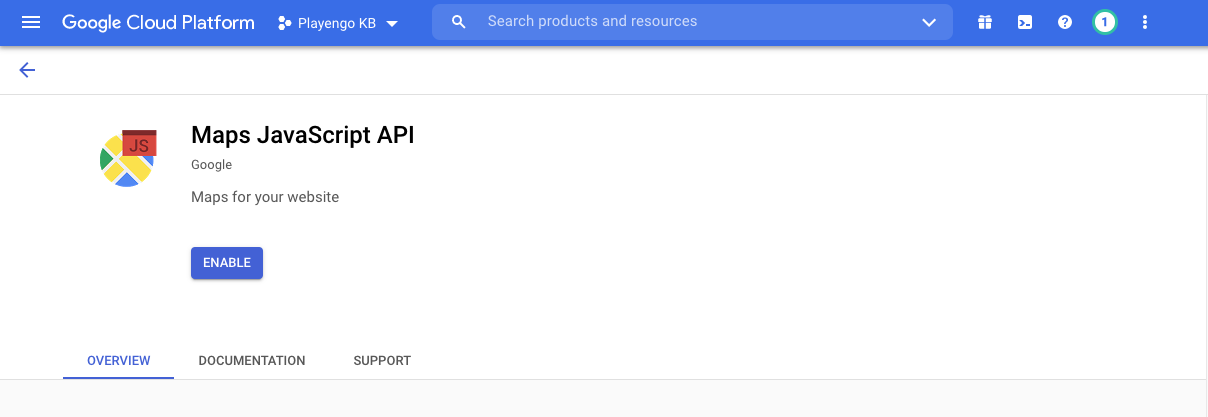
5. Select Maps Javascript API.
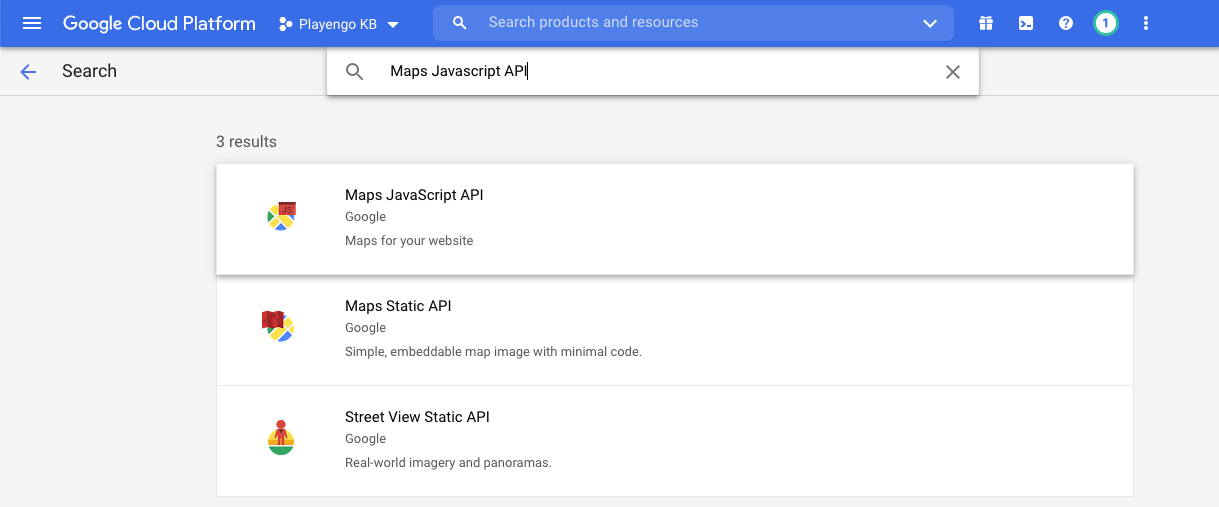
6. Click Enable.
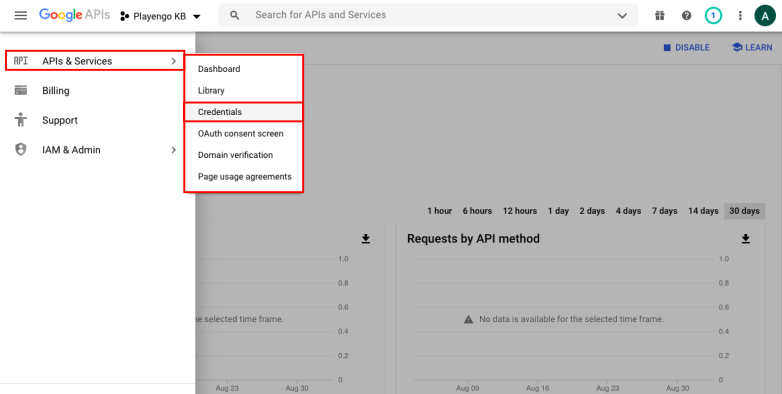
7. Select APIs & Services > Credentials.
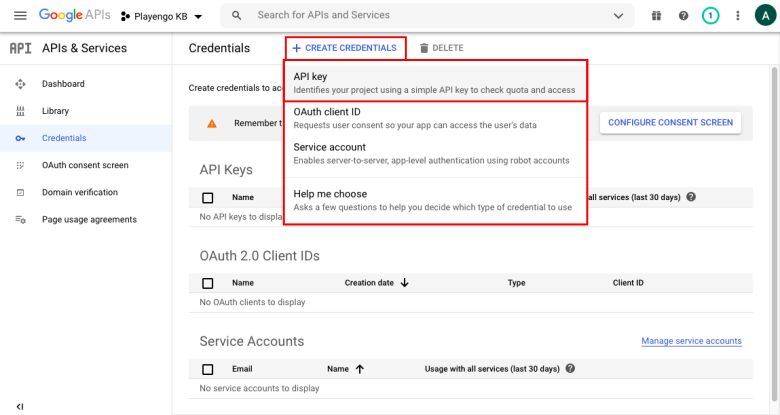
8. Select Create credentials > API key.
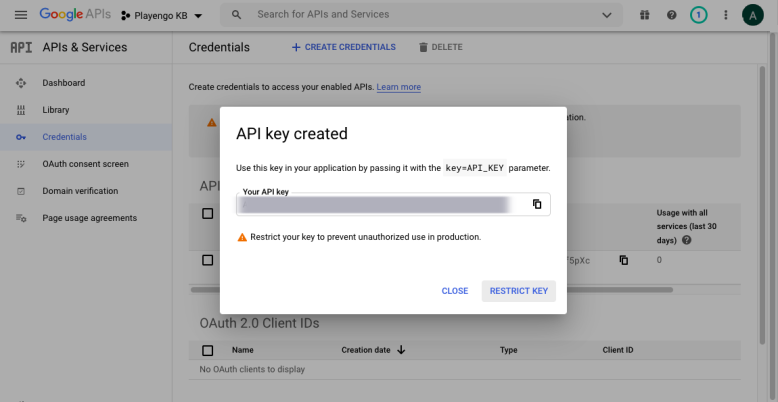
9. Your API is generated after a few moments. Click Restrict key.
Tip: You can copy the key now or do it later.
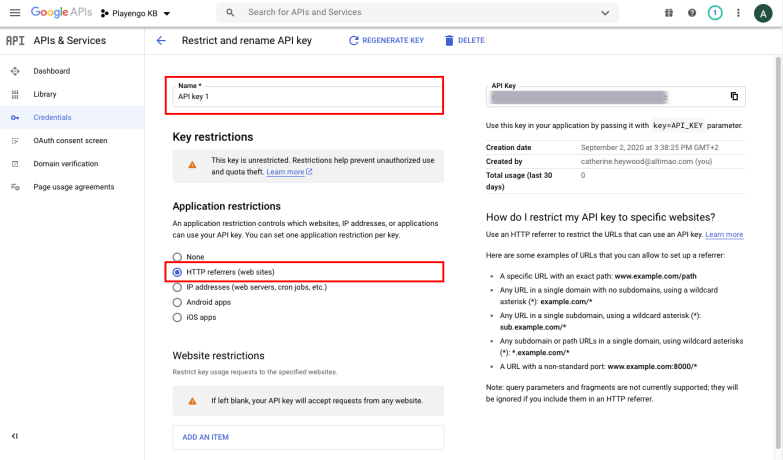
10. In the upper part of the next page:
- enter a name so you can identify your API key
- select HTTP referrers (websites) under Application restrictions
Important: Make sure you define the above setting to restrict your API key usage to Playengo.
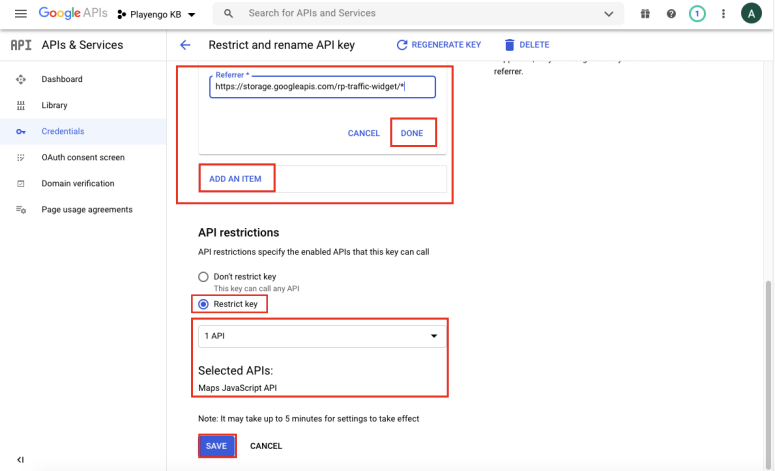
11. In the lower part of the same page:
- click Add and item
- enter https://storage.googleapis.com/rp-traffic-widget/* and press Done
- select Restrict key
- select Select APIs
- select Maps JavaScript API from the drop-down menu
- press Save
Important: Make sure you define the above settings to restrict your API key usage to Playengo.
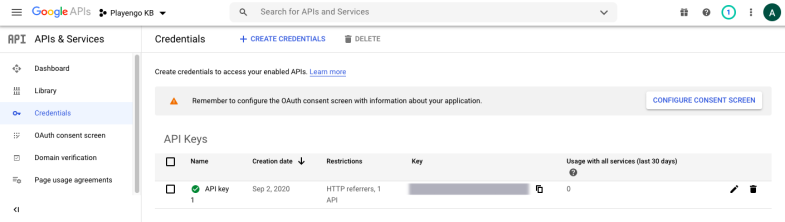
When your API is enabled, the following page opens.
Tip: If you haven't copied your API key you copy it here.
Restrict usage to remain within the free quota provided by Google Maps (optional)
1. Go to https://console.cloud.google.com/apis
2. Choose the right project.
3. Search "Maps Javascript API" in the search field and open this API.
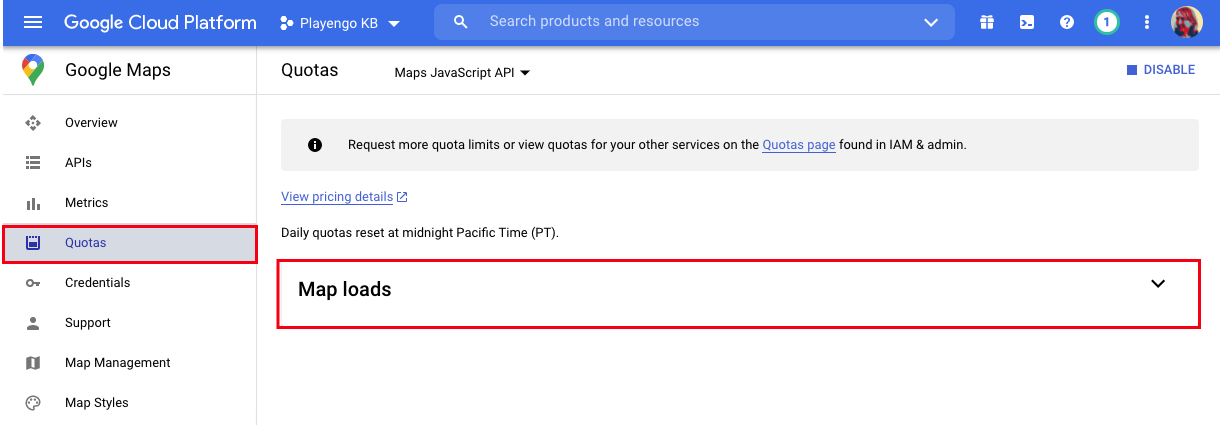
4. Select Quotas in the left panel and open Map Loads.
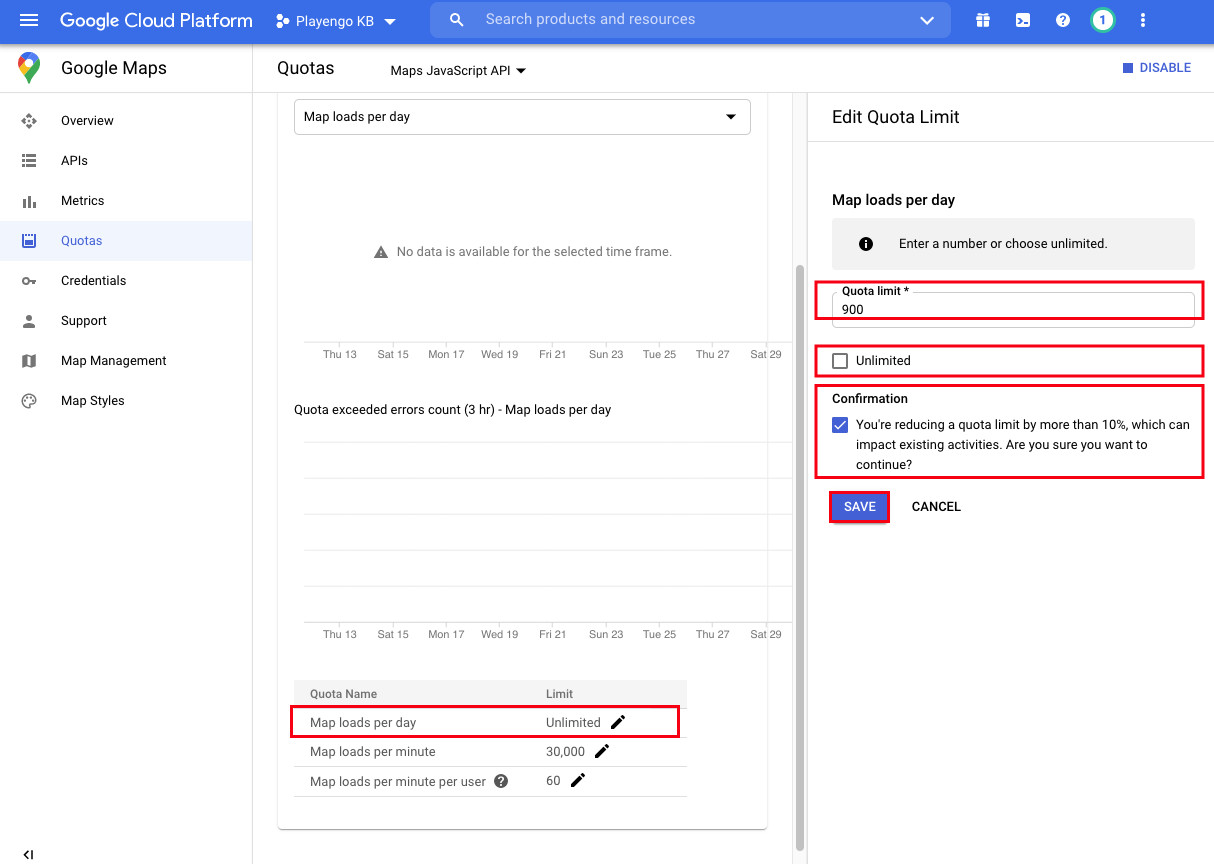
5. Scroll down and click the edit button next to Maps loads per day.
6. In the right panel that opens:
- deselect unlimited
- enter 900 in the Quota limit field
- click the confirmation checkbox
- click Save
Comments
0 comments
Please sign in to leave a comment.