
2
You can add Powerpoint Online and Excel Online files as assets.
Note: Your Office 365 files must be stored online in Sharepoint or Microsoft Teams. You can modify your files online or using your Powerpoint or Excel rich client.
Before adding Office 365 files as assets, you must either:
- make your Office 365 file publicly available by setting its permissions to anyone with the link
- share your file with your generic company account – to be able to to this, an administrator must add the generic company account to Office 365 credentials in the Organization tab
Add Microsoft Office file as assets
Grab the link of your Office 365 file
Access your file in Sharepoint or Microsoft Teams.
In Microsoft Teams:
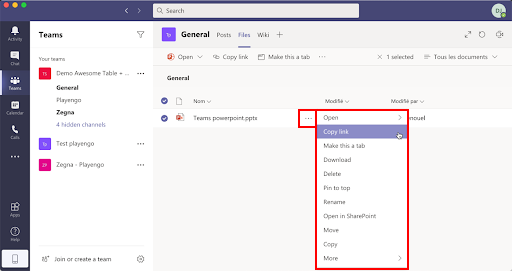
1. Click the more actions button next to a Powerpoint or Excel file and select Copy link in the menu.
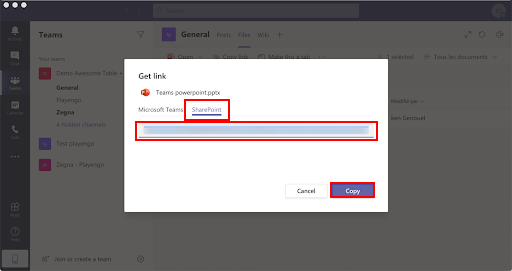
2. In the Get link dialog, select the Sharepoint tab.
3. Select the link and click Copy.
In Sharepoint:
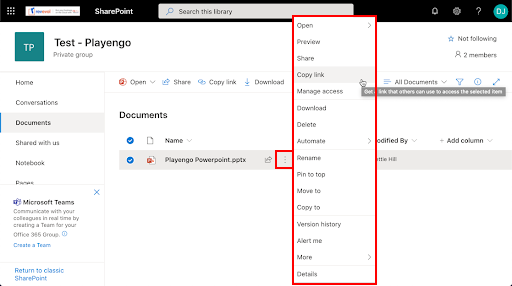
1. Right-click a Powerpoint or Excel file and select Copy link.
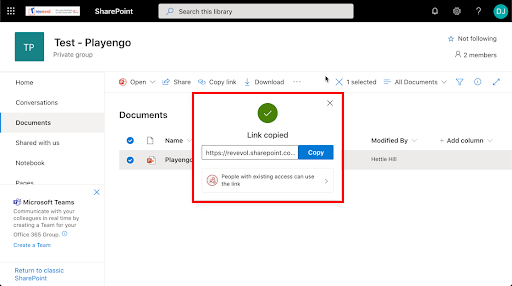
2. In the dialog, select the link and click Copy.
Create your asset in Playengo
1. Open the Assets tab and select the required folder in the left panel.
2. Click New and select Office 365, then either Powerpoint Online or Excel Online in the menu.
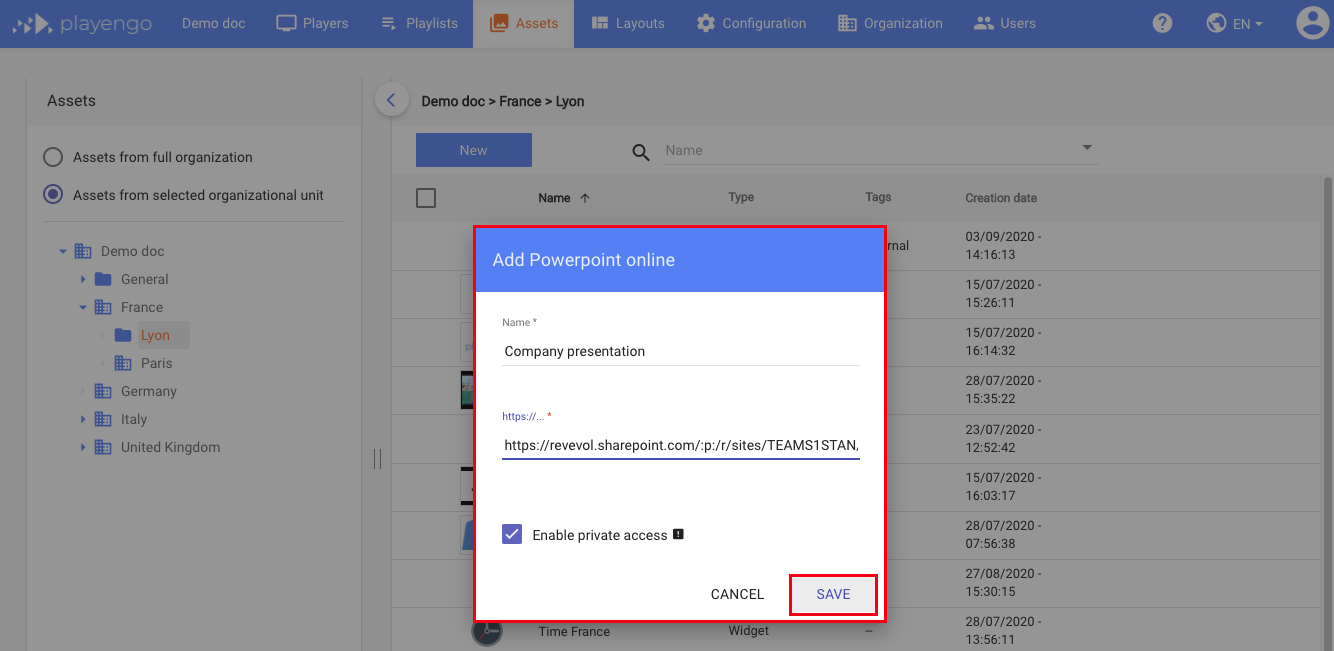
3. In the Add Powerpoint online or Add Excel online dialog:
- enter a name for your Office 365 asset
- paste the link of your Office 365 file that you copied
- if your file isn't available to anyone with the link (and you shared your file with a generic company account), select Enable private access to allow Playengo to access your Office 365 file
Important: Any updates you make to your Office 365 files are immediately displayed on your players. When updating your Office 365 files that are broadcast on your players, the behavior is the same as for Google files. Learn more: Tips on working in Google files for Playengo
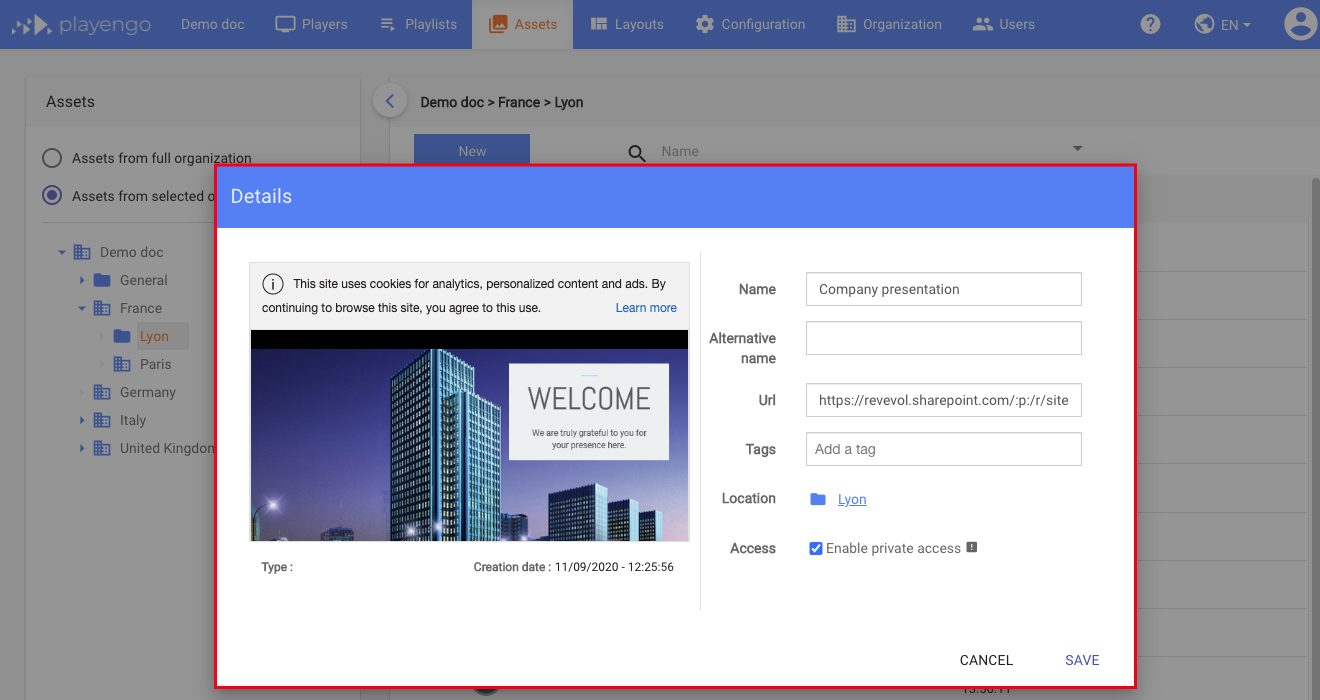
4. To preview your Office 365 asset, click on it once in the Assets tab.
In addition to the settings available when you created the asset, you can also change the location.
Add the generic company account to Office 365 credentials: for administrators
As an administrator:
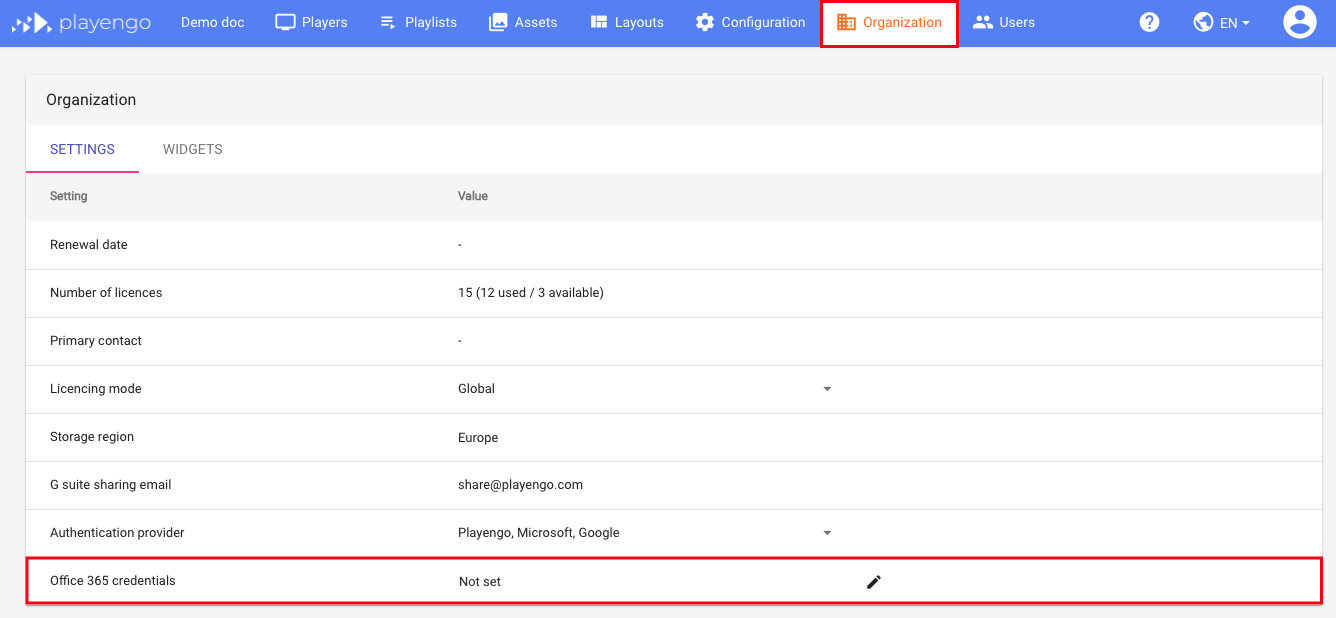
1. Select the Organization tab.
2. In the Settings tab, click the pencil button next to Office 365 credentials.
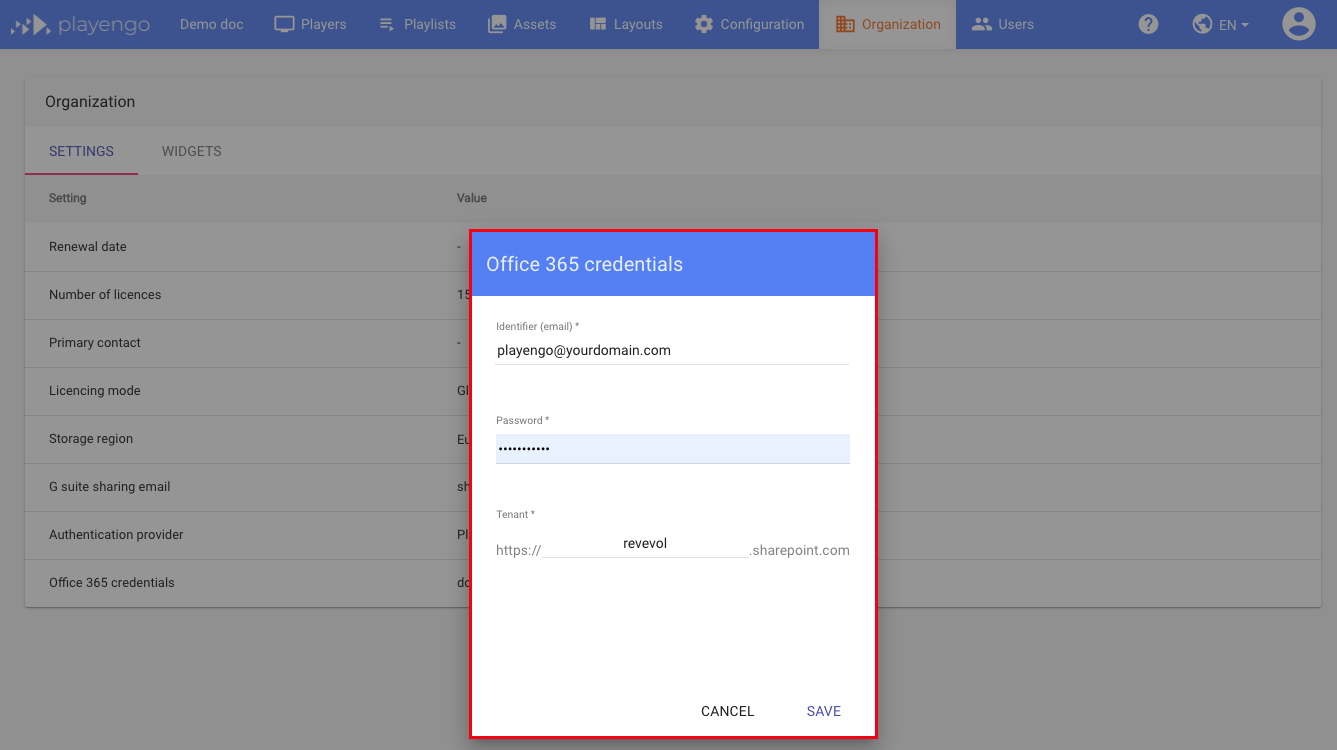
3. In the Office 365 credentials dialog:
- enter the generic company account and its password
- the tenant – revevol in the example below; your tenant is the string between https:// and .sharepoint.com. For example, https://nameofyourcompany.sharepoint.com
Tip: You may want to use a Sharepoint library dedicated to files you want to broadcast on your players.
4. Click Save.
Users can now add Powerpoint Online and Excel Online files as assets.
Comments
0 comments
Please sign in to leave a comment.