
You can add Awesome Table apps as assets.
Tip: For best results, use Slideshow apps.
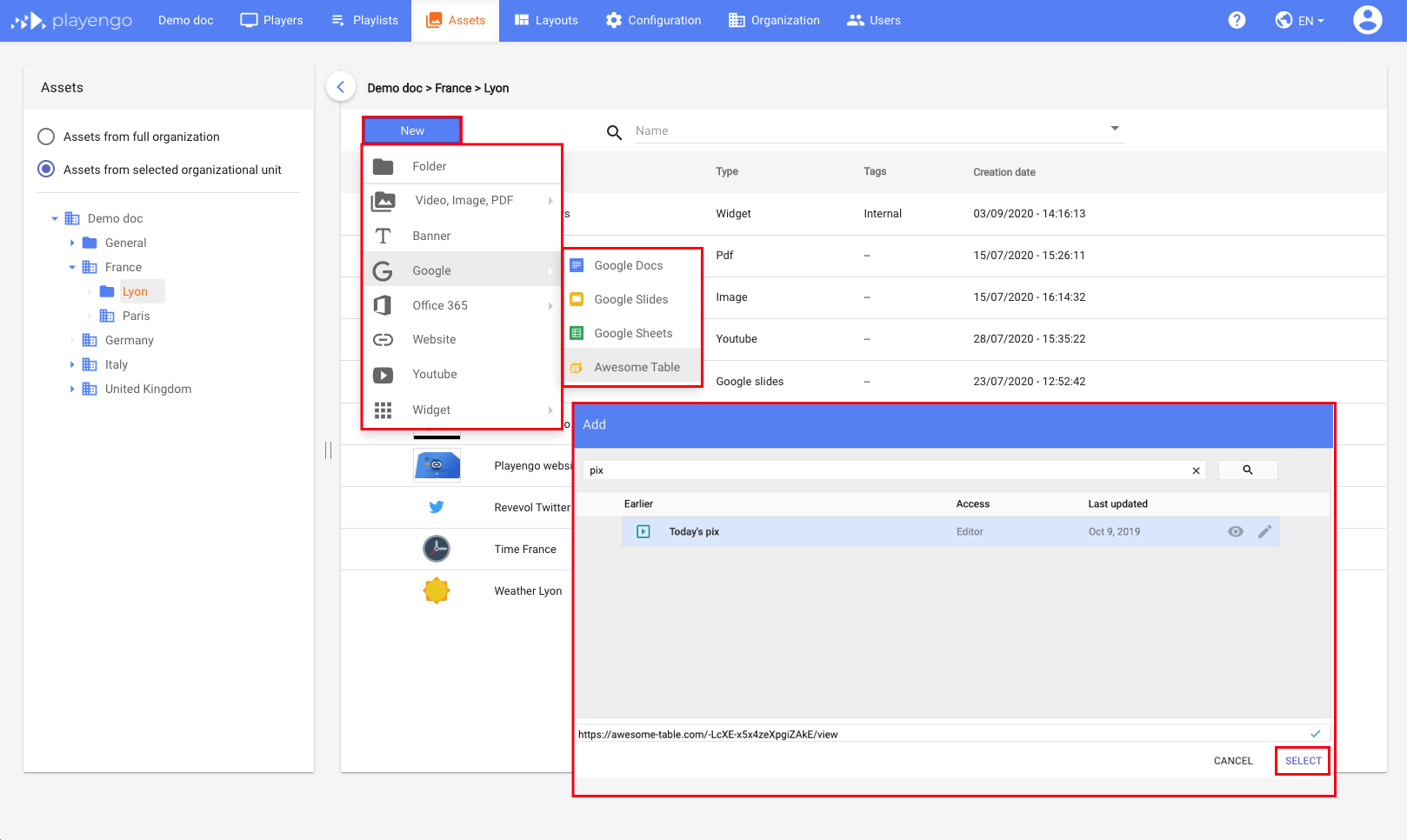
1. Open the Assets tab and select the required folder in the left panel.
2. Click New and select Awesome Table in the menu.
3. In the Add dialog, select your Awesome Table app.
Tip: You can use the search field to find apps.
4. Click Select.
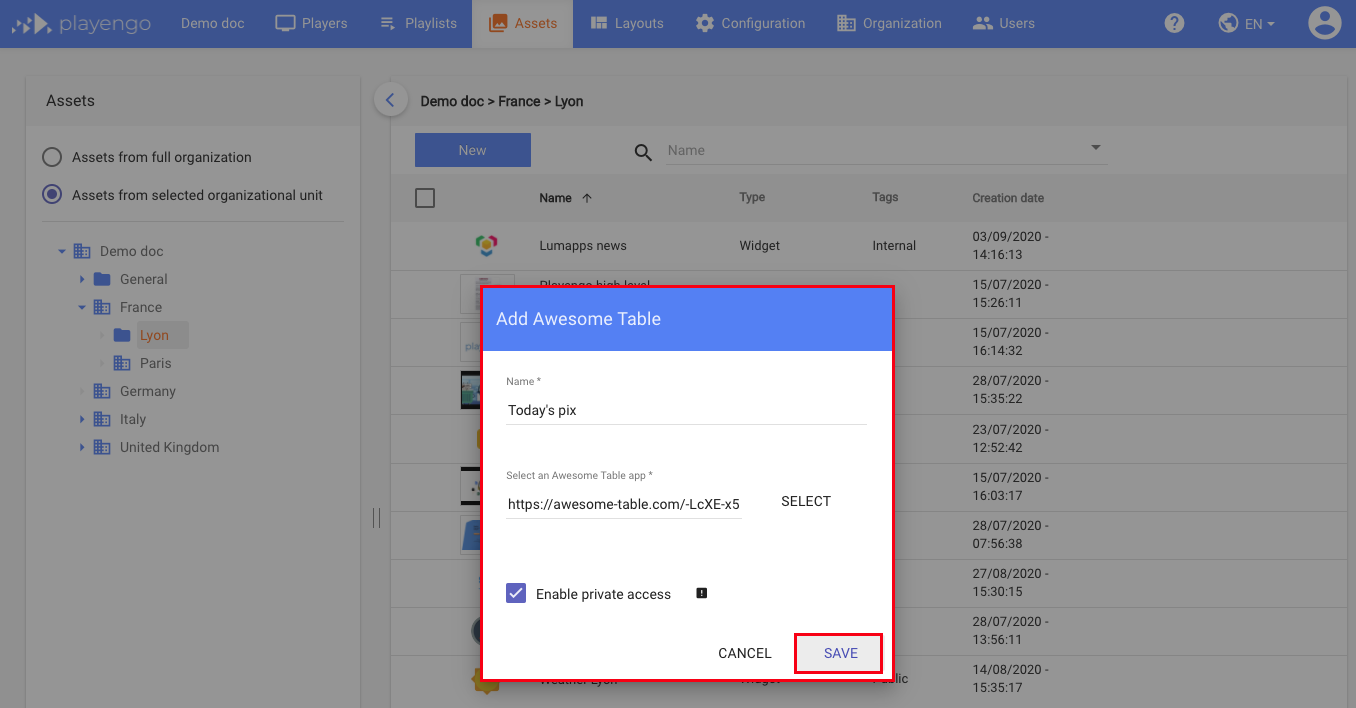
5. In the Add Awesome Table dialog, you can:
- change the name of your Awesome Table asset
- choose a different Awesome Table app
- select Enable private access to allow Playengo to access your Awesome Table app; you must give the share@playengo.com account read access to your source spreadsheet
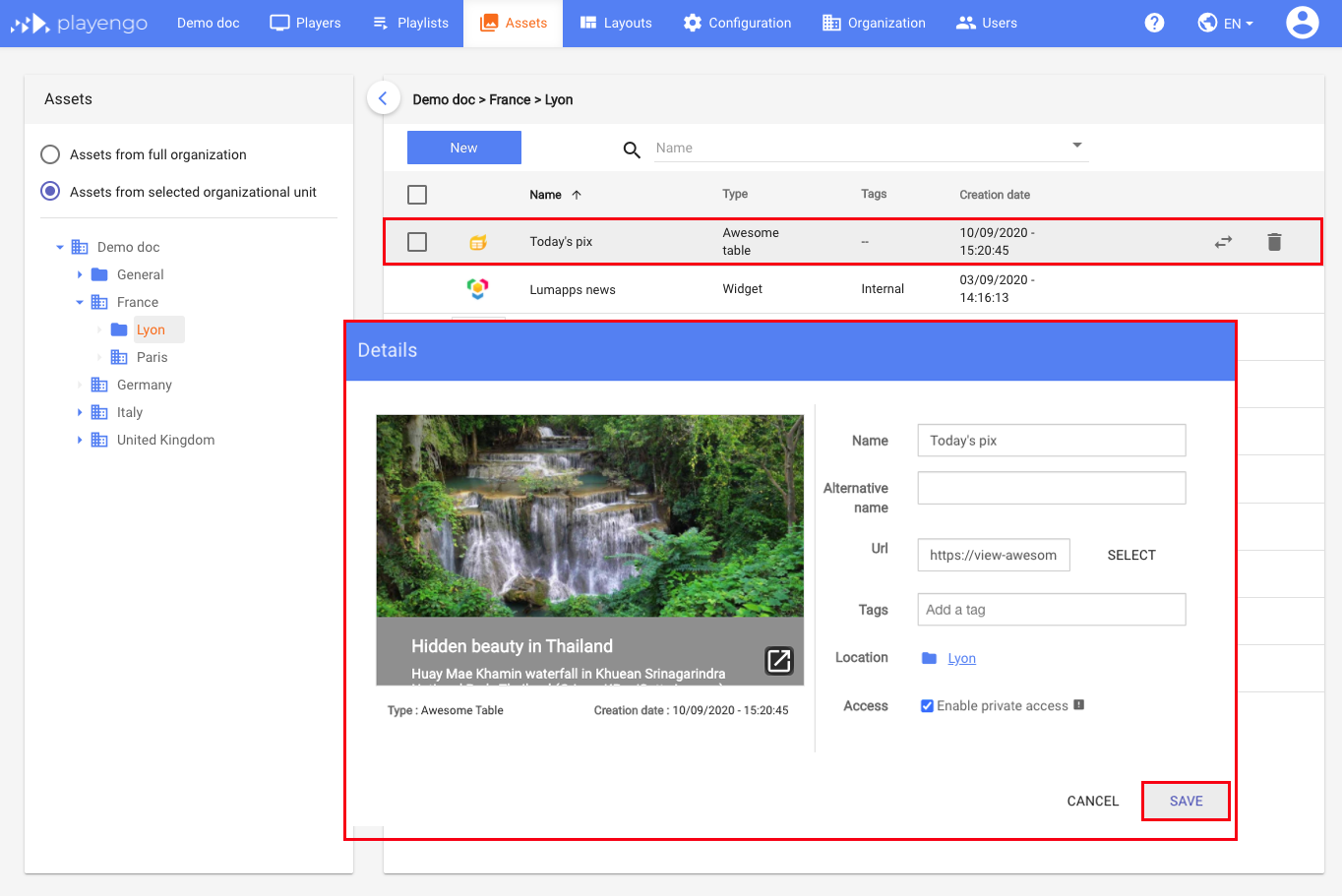
6. To preview your Awesome Table asset, click on it once in the Assets tab.
In addition to the settings available when you created the asset, you can also:
- change the location
- click Select next to URL to change your Awesome Table app
Comments
0 comments
Please sign in to leave a comment.